• Setting up VRF Lite in NSX-T 3.0

    NSX-T version 3.0 brings a new routing construct to the table: VRF Lite. With VRF Lite we are able to configure per tenant data plane isolation all the way up to the physical network. Creating dedicated tenant Tier-0 Gateways for this particular use case is now a thing of the past!

    With 100 VRFs per Tier-0 Gateway we’re also looking at a quite substantial improvement from a scalability point of view.

    A closer look

    VRF Lite in NSX-T 3.0 has the following main features and characteristics:

    • Each VRF maintains its own routing table.
    • A VRF acts as a virtual Tier-0 Gateway associated with a “parent” Tier-0 Gateway.
    • Inter-VRF traffic is either routed through the physical fabric or directly by using static routes.

    As a child object of a Tier-0 Gateway, the VRF inherits some attributes and configuration from its parent. Edge cluster, HA mode, BGP local AS number, and BGP graceful restart settings are inherited and can’t be changed at the VRF level. All other configuration is managed independently within the VRF. This includes external interfaces, BGP state, BGP neighbors, routes, route filters, route redistribution, NAT, and Edge firewall.

    Caveats

    There are some things to keep in mind when working with NSX-T VRF Lite:

    • Bandwidth is shared across all Tier-0 Gateways and VRFs.
    • The Tier-0 Gateway’s HA mode (A/A or A/S) is inherited by the VRF. This is an important consideration when talking stateful services on the VRF level.
    • Inter-SR routing for VRF routing instances is not possible today.
    • Inter-VRF static routing does not work with NAT. Route through the physical fabric instead.

    Not too bad.

    Setting up VRF Lite

    Let’s have a look at how to set up VRF Lite for two new tenants: Blue and Green.

    In this simple walkthrough the assumption is that a Tier-0 Gateway with external interfaces is already configured. BGP should be enabled but peering or neighbor entries are not required. As a reference, in my lab environment the starting point looks like this:

    A Tier-0 Gateway configured with Active/Standby HA mode and four external interfaces (two per Edge node) connecting it to the two ToRs.

    Step 1 – Create VLAN segments

    Just like its parent, a VRF needs VLAN-based uplink segments for establishing connectivity with the physical network:

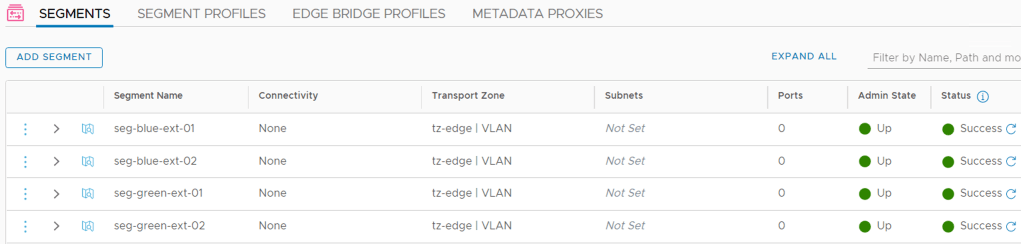
    Note that we configure a VLAN range indicating that the segment will be trunking VLANs within that range. Trunking segments are required for VRF uplinks.

    In total we create four uplink segments for our two VRFs:

    SegmentVLAN rangeUplink Teaming Policy
    seg-blue-ext-011-50teaming-1
    seg-blue-ext-021-50teaming-2
    seg-green-ext-0151-100teaming-1
    seg-green-ext-0251-100teaming-2

    The uplink teaming policies make sure that traffic from each segment is steered towards specific Edge node N-VDS uplinks. This is done to establish a deterministic routing path.
    Step 2 – Create the VRFs

    Creating VRFs in NSX Manager is done under Networking > Connectivity > Tier-0 Gateways > Add Gateway > VRF:
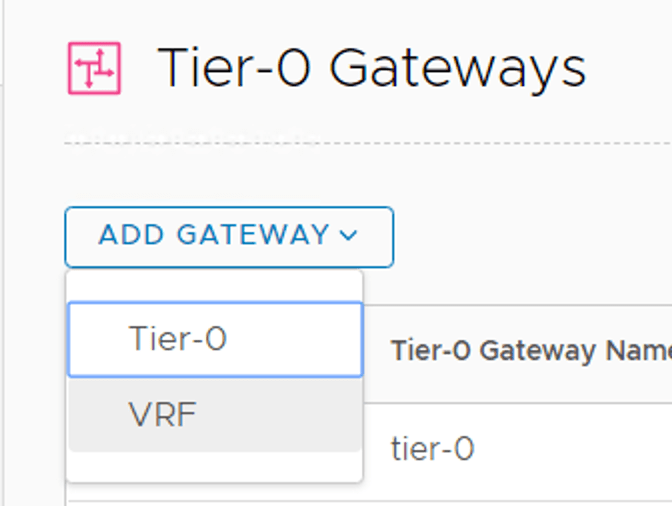
    When creating a VRF we initially only need to specify a name and a parent Tier-0 Gateway:

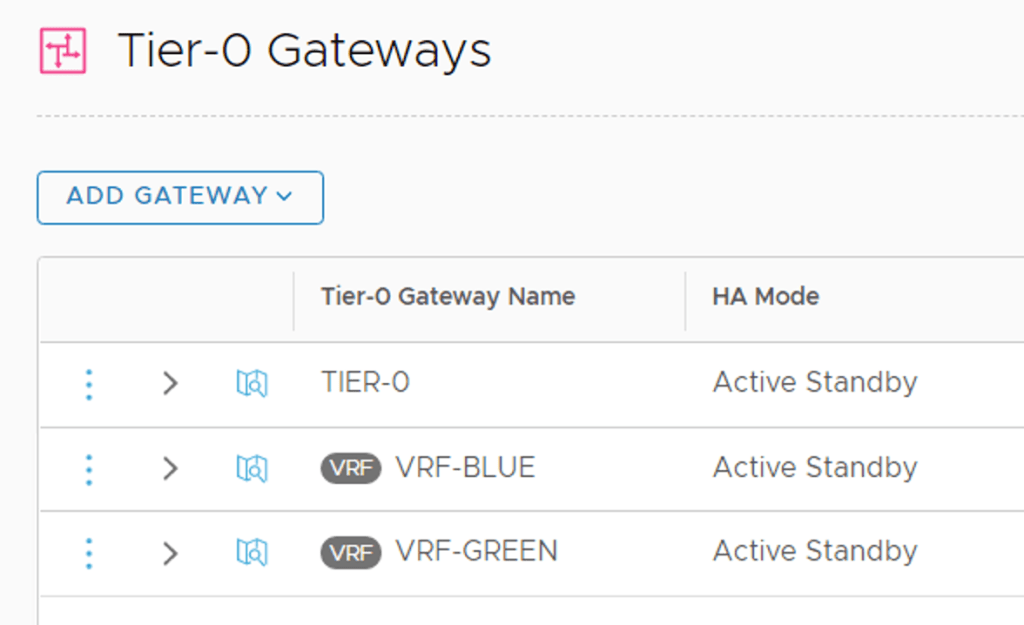
    After repeating this process for the “Green” VRF we have our two VRFs as well as the Tier-0 Gateway in place:
    tier-0 gateways

    Are we done now? No.

    Step 3 – Create VRF external interfaces

    Just like Tier-0 Gateways, VRFs need external interfaces to connect to the physical network.

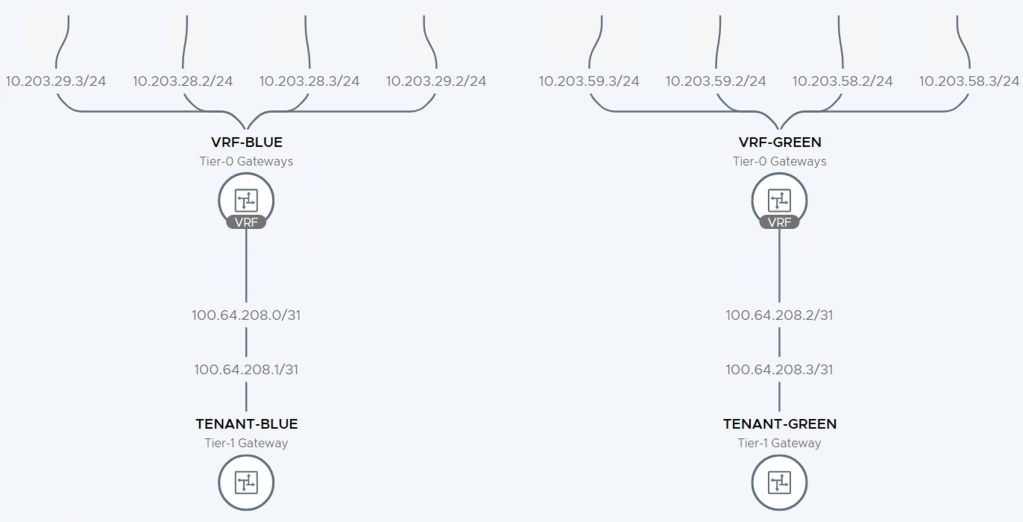
    In this scenario each VRF is configured with four external interfaces as specified in the table below:

    VRFInterface NameIP AddressSegmentAccess VLAN
    Blueen01-uplink110.203.28.2/24seg-blue-ext-0128
    Blueen01-uplink210.203.29.2/24seg-blue-ext-0229
    Blueen02-uplink110.203.28.3/24seg-blue-ext-0128
    Blueen02-uplink210.203.29.3/24seg-blue-ext-0229
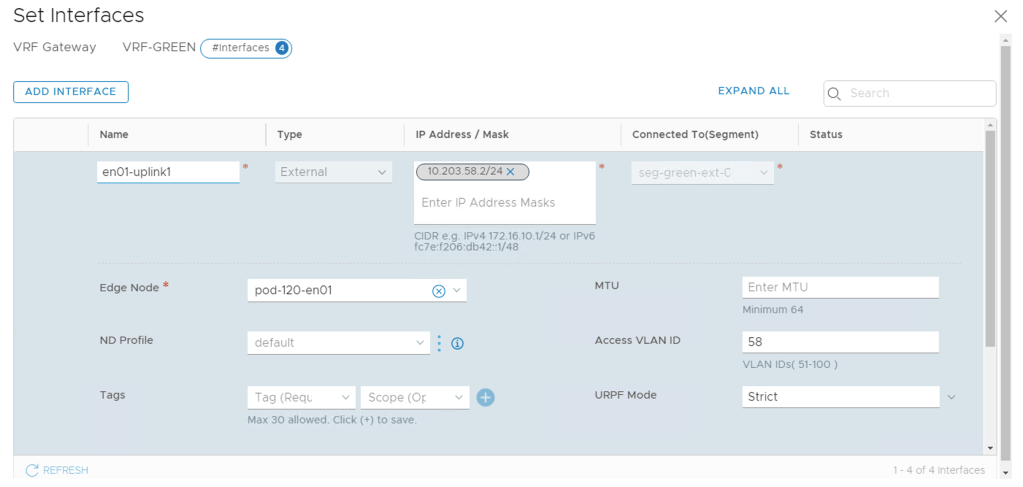
    Greenen01-uplink110.203.58.2/24seg-green-ext-0158
    Greenen01-uplink210.203.59.2/24seg-green-ext-0259
    Greenen02-uplink110.203.58.3/24seg-green-ext-0158
    Greenen02-uplink210.203.59.3/24seg-green-ext-0259

    As you remember, the segments that the external interfaces connect into are configured as trunk segments. Therefore we use the “Access VLAN” property on the VRF external interfaces to specify the BGP peering VLANs.

    Step 4 – Configure BGP

    With the L2 connectivity in place we can move our focus to L3. As stated earlier, VRFs inherit their BGP local AS number and some other BGP settings from their parent Tier-0, but BGP neighbor configuration is done within each VRF.

    Configuring BGP neighbors within a VRF is done exactly the same way as on a Tier-0 Gateway:

    There’s not much to explain here. In this particular scenario each VRF gets two BGP neighbor entries (one for each ToR):
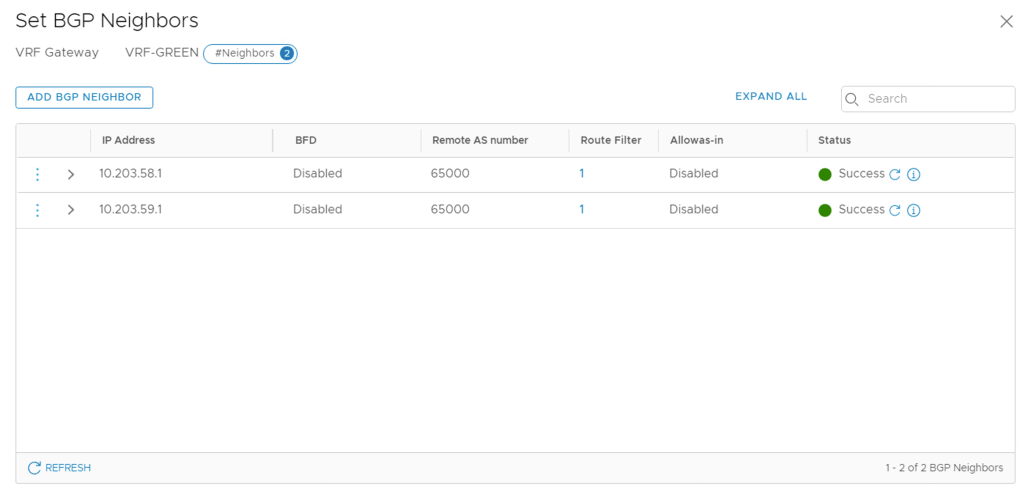
    Once the neighbor configurations are in place we can have a look at things from the Edge node CLI:

    get logical-router

    Here we see the two VRFs that we just configured.

    After connecting a Tier-1 Gateway to each of the VRFs we can see that DR components are being instantiated for the VRFs:

    get logical-router

    From within a VRF context we can check things like the BGP neighbor status:

    vrf 5
    get bgp neighbor summary

    And the BGP routing table for this particular VRF:

    get bgp ipv4
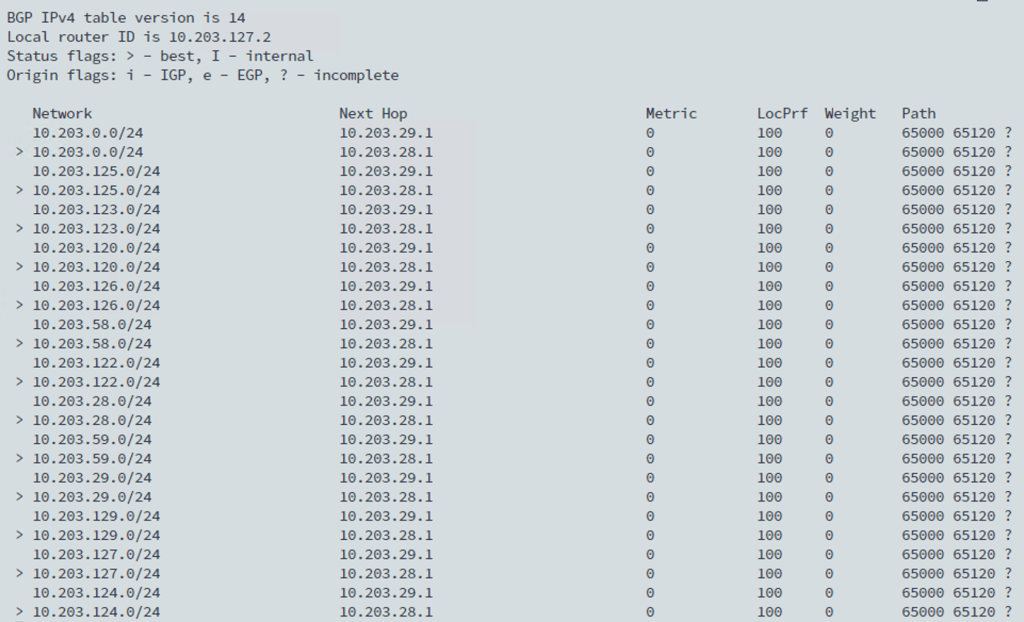
    Inevitably, VRFs add some complexity to NSX-T Edge routing. I recommend using the Network Topology map in NSX Manager which is a pretty nice tool for keeping an overview of the routing configuration:
    Summary

    The new VRF Lite feature introduced in NSX-T 3.0 is a great addition to the platform. It gives customers scalable data plane isolation all the way into the physical network. VRF Lite is easy to set up and maintain and will definitely become the go-to configuration in NSX-T multitenancy environments.

    Thanks for reading.

  • Nested vSphere and NSX-T Deployed With Ansible – April Update

    Some weeks ago I introduced you to my GitHub repository containing a set of Ansible playbooks helping people deploy a highly customizable vSphere 6.7/7.0 with NSX-T 2.5/3.0 nested lab environment.

    As I mentioned in the “launch” post, this project is a work in progress and during the last couple of weeks I’ve been spending many hours on trying to improve bits and pieces of the deployment process. I’m also learning more and more about working with Git and Ansible which is a great added bonus.

    After reaching somewhat of a milestone the other day, I thought I’d write a short blog post on what’s new and improved. So let’s have a look.

    What’s New

    Python 3

    No more Python 2 code or dependencies! As a matter of fact, I carry out all testing from an Ubuntu 18.04 VM with only Python 3 installed.

    VyOS router

    A VyOS router (VM) is now part of the default deployment.

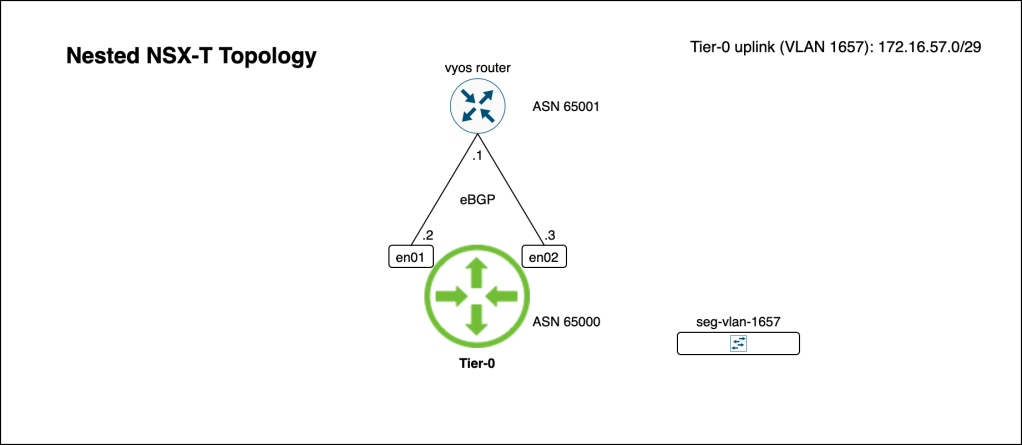
    VIFs on the router’s internal interface are default gateways for the VLANs within the nested environment. The public interface should be connected to your physical network so that traffic can be routed in and out of the nested environment. Furthermore, BGP is configured for peering with the Tier-0 Gateway and NAT is enabled for the nested environments management VLAN.

    NSX-T logical networking

    Leveraging VMware’s new NSX-T 3.0 Ansible modules, the default deployment now provisions NSX-T logical networking.

    A Tier-0 Gateway with two external interfaces and BGP configuration for peering with the VyOS router. Of course, everything from AS numbers to IP subnets is customizable.

    vCenter not required/used

    The entire deployment is now carried out against a standalone physical ESXi host. vCenter is not required and not used.

    Miscellaneous improvements

    • Only Ansible and VMware supported modules are used by the deployment. Custom modules have been removed.
    • Improved answerfile.yml (I’m still trying to find the perfect balance between customizability and ease of use).
    • Added undeploy.yml for easy removal of the deployed components.
    • An updated README.md now contains clearer instructions and more information including some diagrams.

    Summary

    While I’m afraid that this project will never be finished, I am happy enough with the latest improvements to call it a “milestone”.

    There are more areas that need attention, but there’s a foundation at least. The playbooks certainly help me when I need to spin up different vSphere/NSX-T environments for testing.

    Thanks for reading.
  • Nested vSphere 7 And NSX-T 3.0 Deployed With Ansible

    With VMware releasing new major versions of vSphere and NSX-T last week, it’s high season for nested lab deployments. My Norwegian Proact colleague Rudi Martinsen just published a great two part series on how to deploy a nested lab using vRealize Automation. My Dutch buddy at VMware Iwan Hoogendoorn is doing something very exciting with Terraform. And William Lam, who has been building nested labs since the day he was born I believe, has been busy with something too.

    There are many tools available to automate deployment of a nested lab. Which is your favorite one?

    Ansible Playbooks

    About a week ago I stumbled upon Yasen Simeonov’s GitHub repository. It contains a collection of Ansible Playbooks that automate the deployment of a nested vSphere environment. After trying it out a couple of times I decided to adopt Yasen’s, somewhat neglected, pet to give it some new love and attention (with Yasen’s blessing of course).

    GitHub repository

    Today I’m presenting my own GitHub repository vsphere-nsxt-lab-deploy which is largely based on Yasen’s, but with a couple of updates and additions.

    First of all, I updated the code so that it can deploy the brand new vSphere 7. Then I took things one step further and added Playbooks for a complete NSX-T 2.5/3.0 deployment leveraging VMware’s new Ansible NSX-T 3.0 modules.

    Runbook

    I won’t go through the deployment process in detail. The repository’s single source of truth README.md is hopefully informative enough. Right now the runbook looks like this:

    1. Create a vSwitch and port groups on the physical ESXi host.
    2. Deploy and configure a vCenter Server Appliance (via automated CLI install).
    3. Deploy 5 ESXi virtual machines (via ISO install and KS.cfg).
    4. Configure the nested vSphere environment:
      1. Configure the ESXi hosts.
      2. Create and configure a VDS.
      3. Create Compute and Edge vSphere cluster and add ESXi hosts.
    5. Deploy NSX-T:
      1. Deploy NSX Manager.
      2. Register vCenter as a Compute Manager in NSX Manager.
      3. Create NSX-T Transport Zones (VLAN, Overlay, Edge).
      4. Create IP pool (TEP pool).
      5. Create Uplink Profiles.
      6. Create NSX-T Transport Node Profile.
      7. Deploy two NSX-T Edge Transport Nodes.
      8. Create and configure NSX-T Edge Cluster.
      9. Attach NSX-T Transport Node Profile to the “Compute” vSphere cluster (will effectively install NSX-T bits and configuration on the ESXi hosts in that cluster)

    The deployment time is around 1,5 hours on my hardware. Without NSX-T it takes about 45 minutes.

    The deployment is easy to modify. Change the settings in answerfile.yml to fit your needs and edit deploy.yml to control which components are being deployed. For example, if you’re not interested in deploying NSX-T you can simply comment out those Playbooks in deploy.yml.

    Work in progress

    The repository and its code is a work in progress and changes are committed on a regular basis. Although I’m pretty happy with what it currently does, there’s certainly room for improvement. I’m thinking about adding some optional Playbooks that set up some NSX-T logical networking constructs like Tier-0/Tier-1 Gateways, segments, and so on. I’ll keep you posted via the README.md and social media.

    Summary

    Feel free to use the repository as it is or let it inspire you and create something better. Just don’t forget to thank Yasen who laid the groundwork here.

  • With the release of vSphere 7 comes the vSphere Distributed Switch 7.0. This latest version comes with support for NSX-T Distributed Port Groups. Now, for the first time ever it is possible to use a single vSphere Distributed Switch for both NSX-T 3.0 and vSphere 7 networking!

    First and foremost, this new integration enables a much simpler and less disruptive NSX-T installation in vSphere environments. Previously, installing NSX-T required setting up a pNIC consuming N-VDS. Not seldom ESXi hosts found themselves handing over all of their networking, including vSphere system networking, to NSX-T. With the introduction of the VDS 7.0 this is a thing of the past.

    vSphere admins will appreciate the additional control, VDS 7.0 being a 100% vCenter construct, and for pure micro-segmentation projects in a VLAN-only vSphere environment using this new integration will be a no-brainer.

    Another “problem” that the VDS 7.0 solves, is that the NSX-T segments it backs are presented as ordinary distributed port groups. This should eliminate any issues surrounding NSX-T segments not being discoverable by third party applications. Yes, opaque networks have been around since 2011, but fact is that not all third party applications have picked up on these.

    One inevitable consequence of tying the two platforms together on a VDS is the new dependency. vCenter is required for running NSX-T on ESXi. It’s not a huge thing, but something to keep in mind when architecting a solution.

    This article wouldn’t be complete without some hands-on. I’m going to have a look at what’s involved in configuring vSphere and NSX-T so that a single VDS 7.0 is used for both vSphere 7 and NSX-T 3.0 networking. I’ll configure this in a greenfield scenario and a brownfield scenario.

    Let’s get started!

    Greenfield scenario

    We’ve just deployed vSphere 7 and NSX-T 3.0. ESXi hosts have not been configured as transport nodes yet. On a high level there are just two steps necessary to set up the integration:

    1. Install and configure VDS 7.0
    2. Prepare NSX-T

    Let’s have a closer look at each of these steps.

    Step 1 – Install and configure VDS 7.0

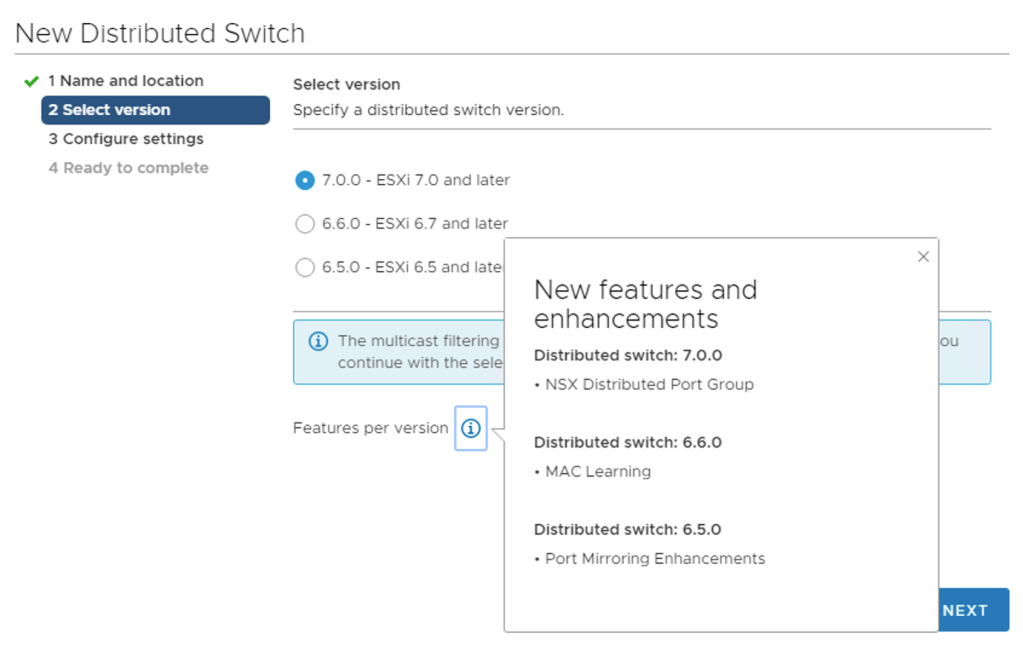
    Installing VDS 7.0 sounds like an extensive process. In reality this is simply you creating a new vSphere Distributed Switch and making sure version 7.0.0 (default) is selected:

    As you can see “NSX Distributed Port Group” is listed as the main new feature for distributed switch 7.0.

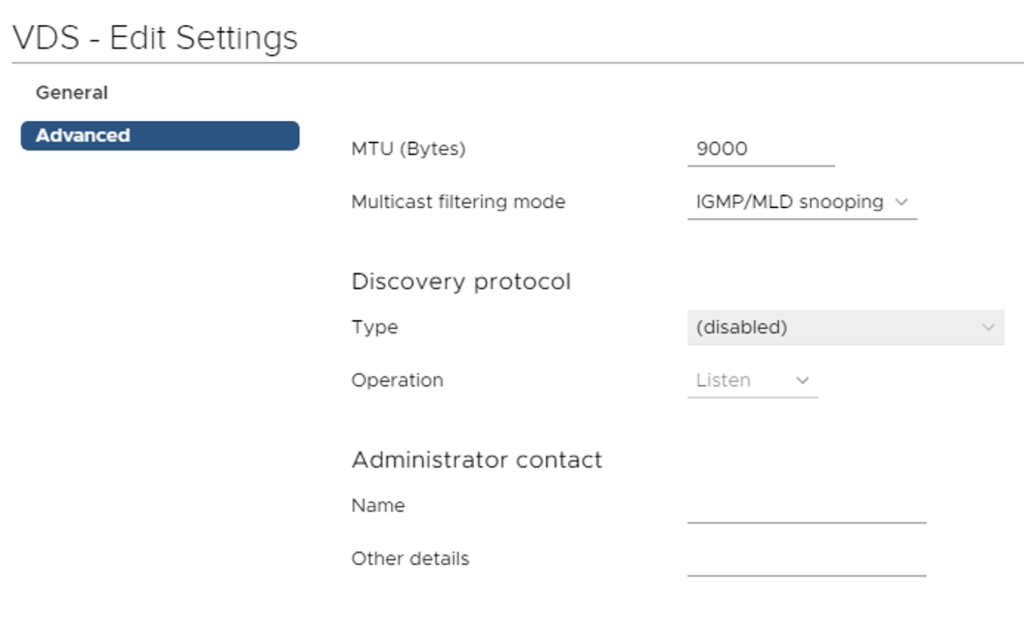
    This VDS will potentially have to deal with Geneve encapsulated packets (NSX-T overlay networking) so we are required to increase the MTU to at least 1600. I’m going for 9000 right away:

    We create our distributed port groups for management, vMotion, storage, and possibly VM networking and then add our hosts to the new VDS. Here pNICS are assigned to the VDS uplinks:

    We migrate the VMkernel adapters to their respective DVPGs and can remove the standard switch. We’re done in vSphere.

    Step 2 – Prepare NSX-T

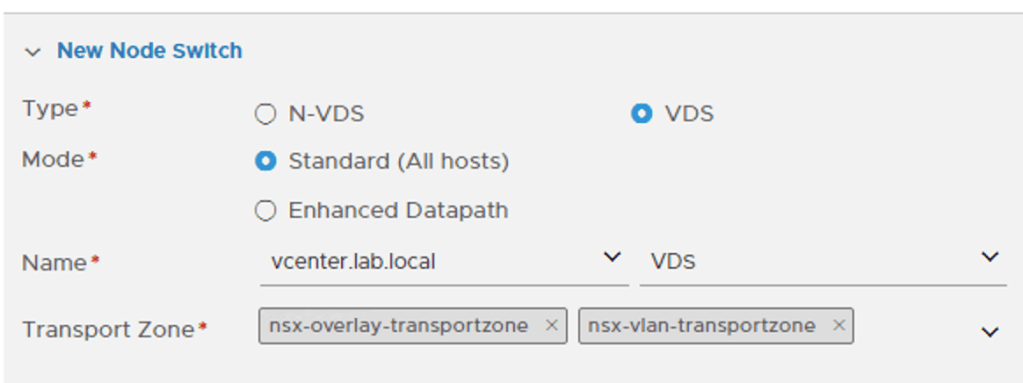
    On the NSX-T side we start with creating a Transport Node Profile. Besides an N-VDS we can now select a VDS as the Node Switch type which is exactly what we want:

    When choosing a VDS we need to pick a vCenter instance and a VDS 7.0. Please note that the vCenter instance needs to be added as a Compute Manager to NSX-T before it can be selected here.

    Further down on the same form we map the uplinks as defined in the NSX-T Uplink Profile to the uplinks of the VDS:

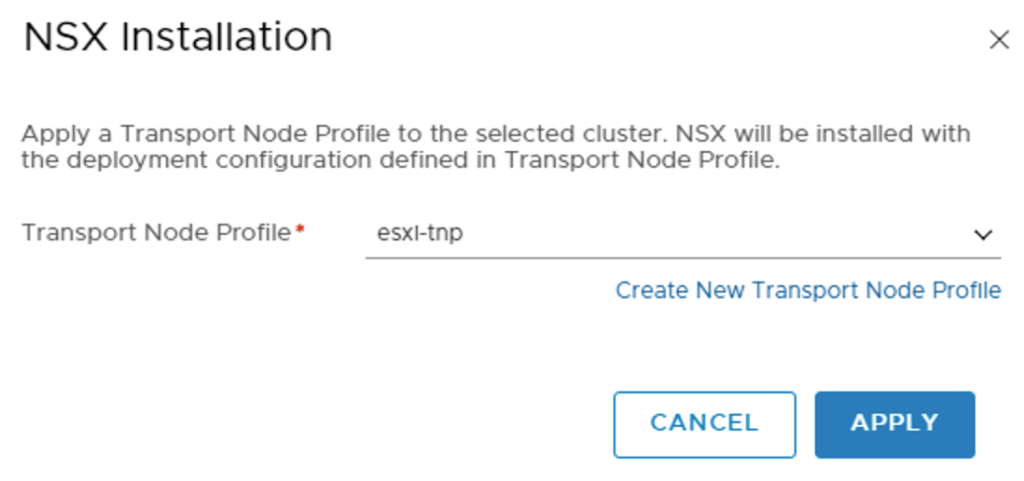
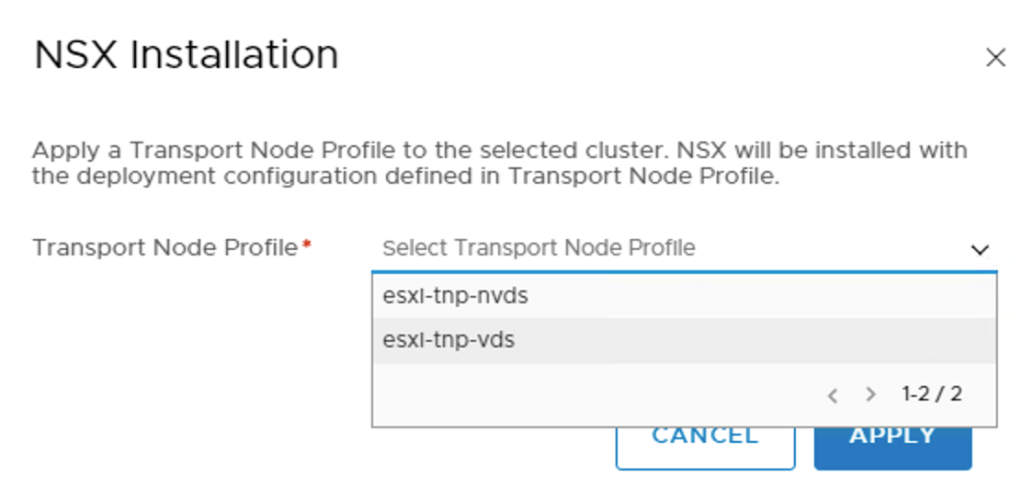
    The final step is to prepare the ESXi hosts by attaching the new Transport Node Profile to the vSphere cluster:

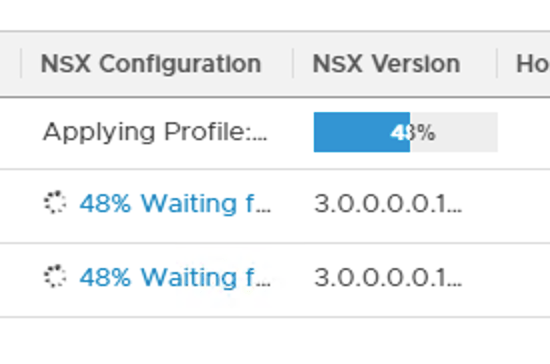
    This will install the NSX-T bits as well as apply the configuration on the ESXi hosts:

    A closer look at the VDS 7.0

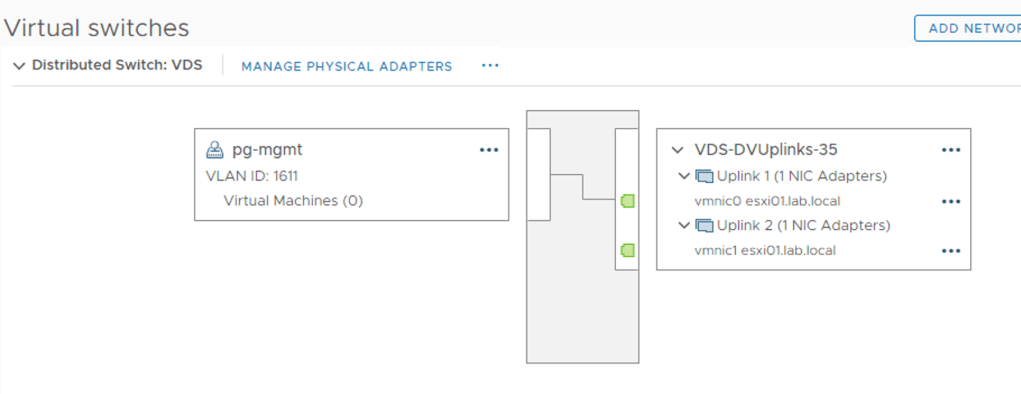
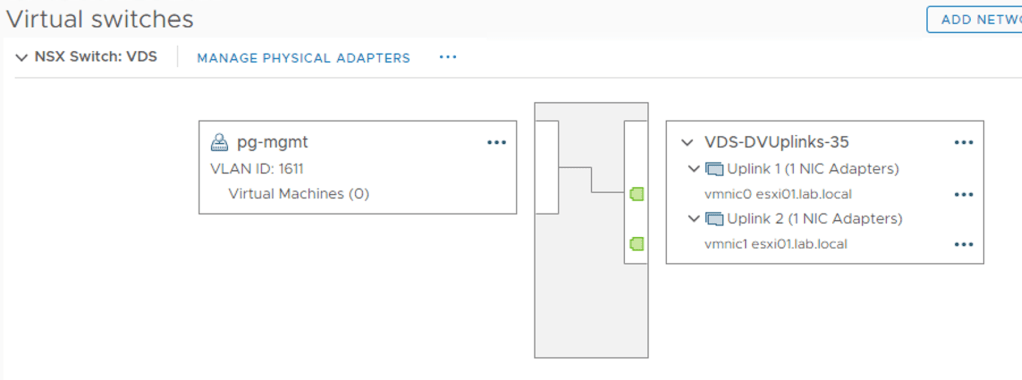
    In vCenter, if we look really carefully we can see that this VDS is now in use by NSX-T (too):

    It’s a bit hard to spot, but the VDS is now of the type NSX Switch. This is mostly a cosmetic difference. From the vSphere perspective an NSX Switch is still just an ordinary VDS 7.0.

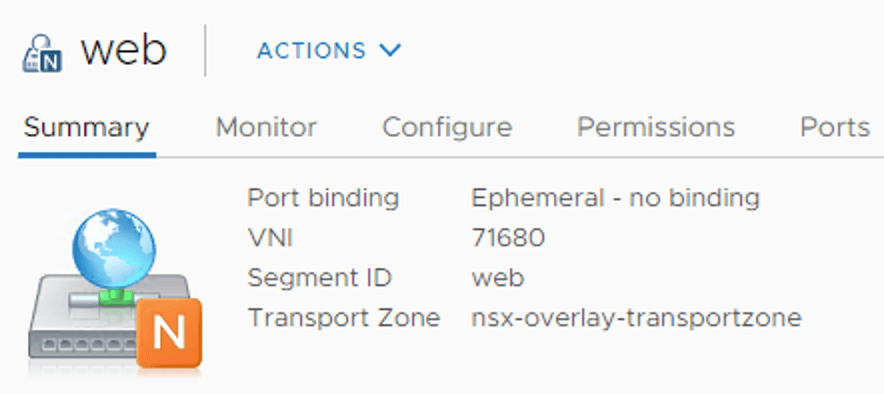
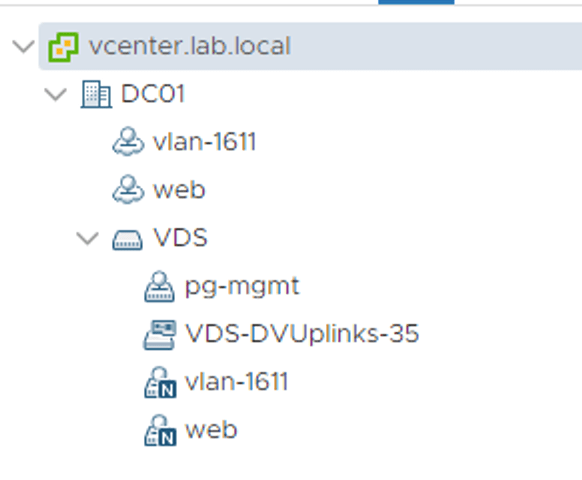
    NSX-T segments that are backed by the VDS now show up as NSX distributed port groups:

    Some NSX-T specific information like VNI, segment ID, and transport zone is visible from here which could come in handy one day.

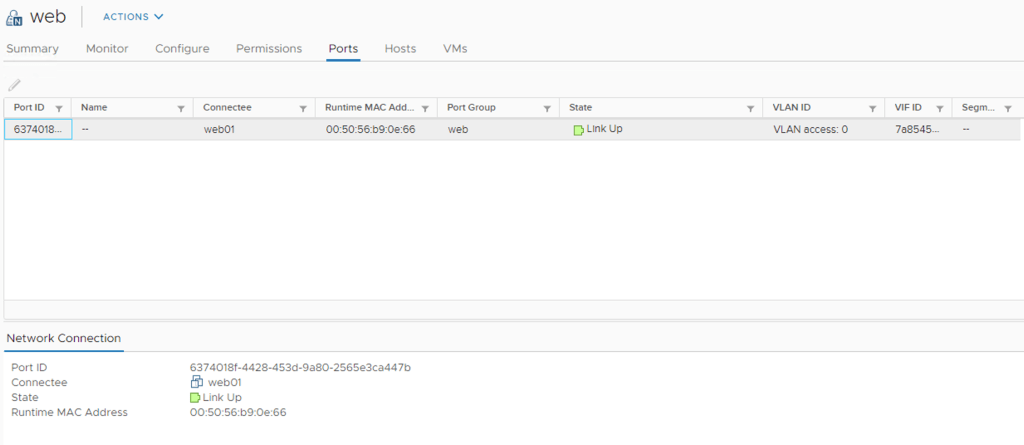
    Under Ports we can find some more NSX-T information like Port ID, VIF ID, and Segment Port ID which are coming straight from NSX-T:

    When selecting an NSX distributed port group, the Actions menu contains a shortcut to the NSX Manager UI:

    No editing in vCenter. The NSX distributed port groups are NSX-T objects (segments) and are managed through the NSX-T management plane.

    Brownfield scenario

    We just upgraded our environment to vSphere 7 and NSX-T 3.0. The ESXi hosts were previously configured as NSX-T transport nodes and both of their pNICS belong to the N-VDS. The configuration process in this scenario involves the following high level steps:

    1. Create a new vSphere cluster
    2. Install and configure VDS 7.0
    3. Create new NSX-T Transport Node Profile
    4. Configure mappings for uninstall
    5. Move ESXi host to the new cluster
    6. Attach a Transport Node Profile to the new cluster
    7. vMotion virtual machines
    8. Repeat steps 5 + 7 for the remaining ESXi hosts

    Migrating NSX-T to VDS 7.0 involves many more steps and also some data plane disruption. Let’s see how it’s done.

    Step 1 – Create new vSphere cluster

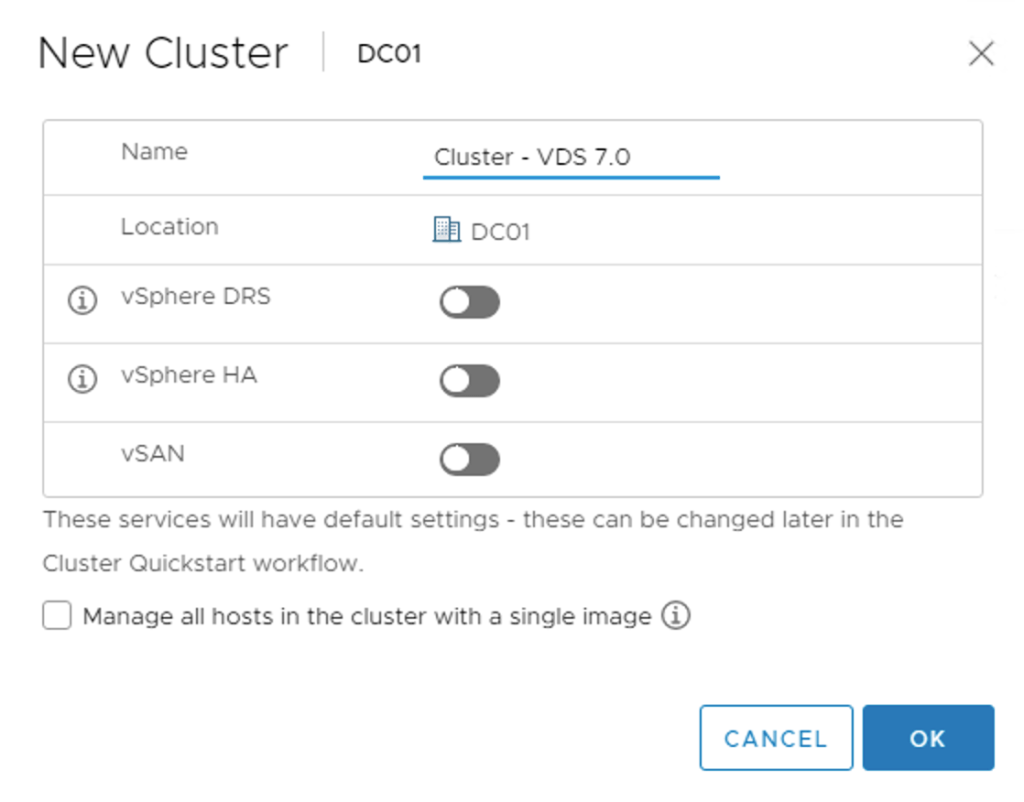
    Quite a first step, but to minimize data plane disruptions, a new vSphere cluster is created. This cluster will be configured with the VDS-based Transport Node Profile in a later step:

    UPDATE (17/04/2020) – When creating the new vSphere cluster, make sure that the “Manage all hosts in the cluster with a single image” is not selected. This feature is currently incompatible with NSX-T 3.0. Thank you Erik Bussink for pointing this out in the comments.

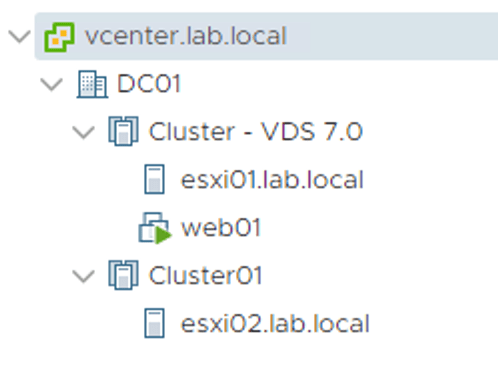
    The existing and the new cluster next to each other as seen in vSphere Client:

    Step 2 – Install and configure VDS 7.0

    Like in the greenfield scenario we create a new version 7.0 vSphere Distributed Switch:

    And set the MTU to at least 1600 bytes:

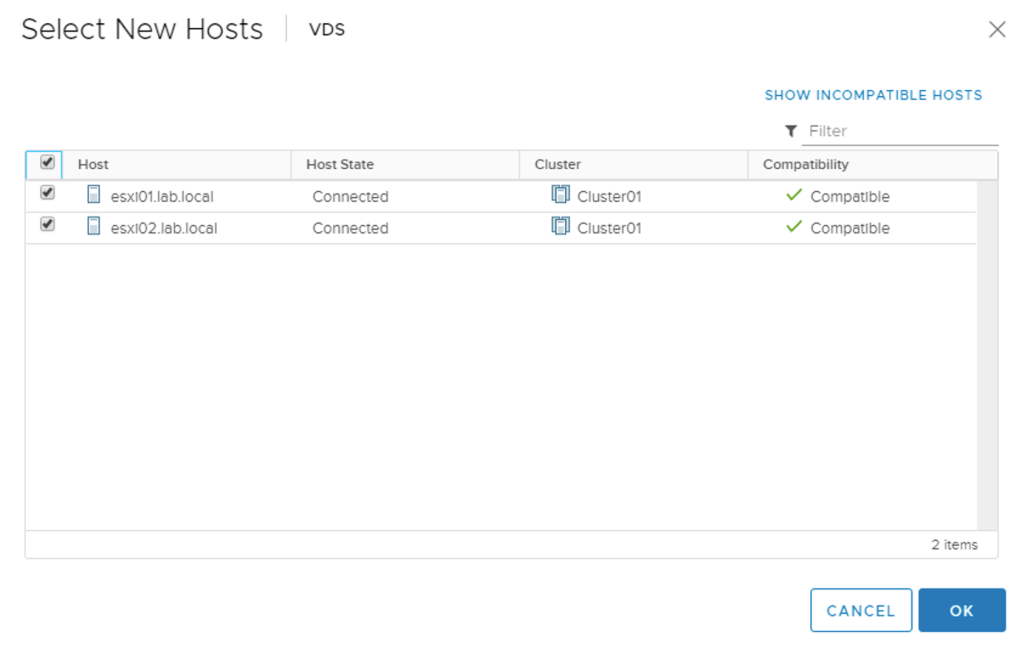
    Next, we add the ESXi hosts to the new VDS, but without migrating any pNICS or VMkernel adapters. At this point the ESXi hosts just need to know that the new VDS exists:

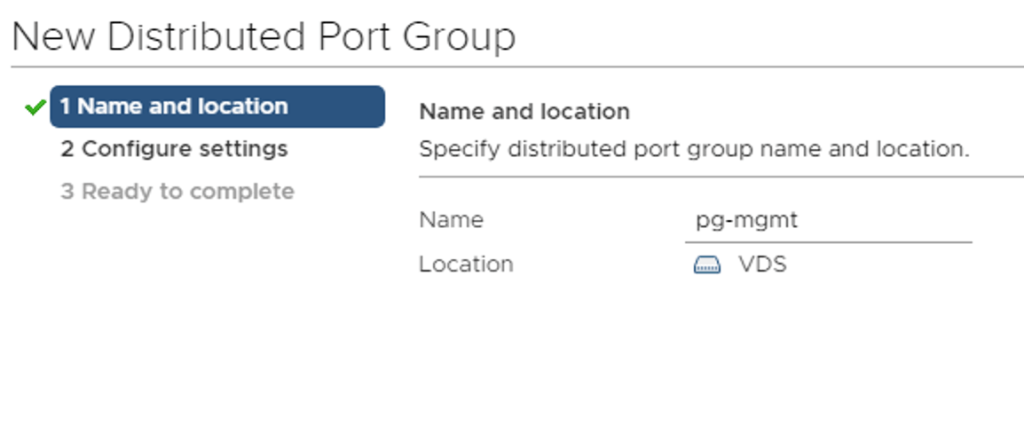
    We create distributed port groups for the VMkernel adapters that are currently on the N-VDS. These need to be created in advance to ensure a smooth migration of VMkernel adapters later:

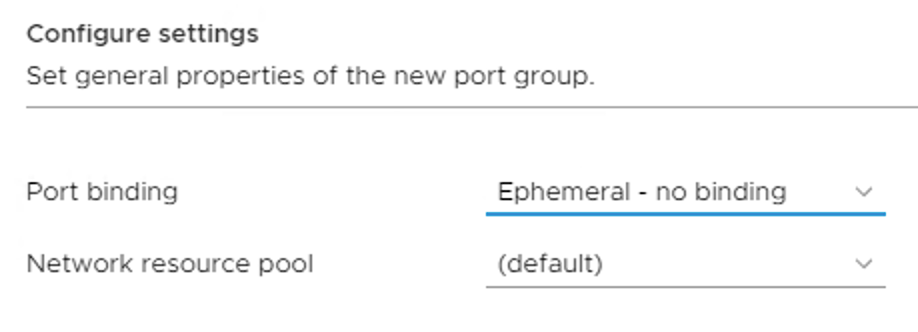
    One important detail here is that these “VMkernel” distributed port groups need to be configured with a Port binding set to Ephemeral:

    Step 3 – Create new NSX-T Transport Node Profile

    Now we create a new Transport Node Profile that is configured with a VDS type Node Switch. Select the vCenter instance and the VDS 7.0:

    We configure the Teaming Policy Switch Mapping that maps uplinks defined in the uplink profile to the uplinks of the VDS 7.0:

    Step 4 – Configure mappings for uninstall

    A new feature in NSX-T 3.0 is that when moving an ESXi host out of a vSphere cluster that has a Transport Node Profile attached, NSX-T is automatically uninstalled from that host.

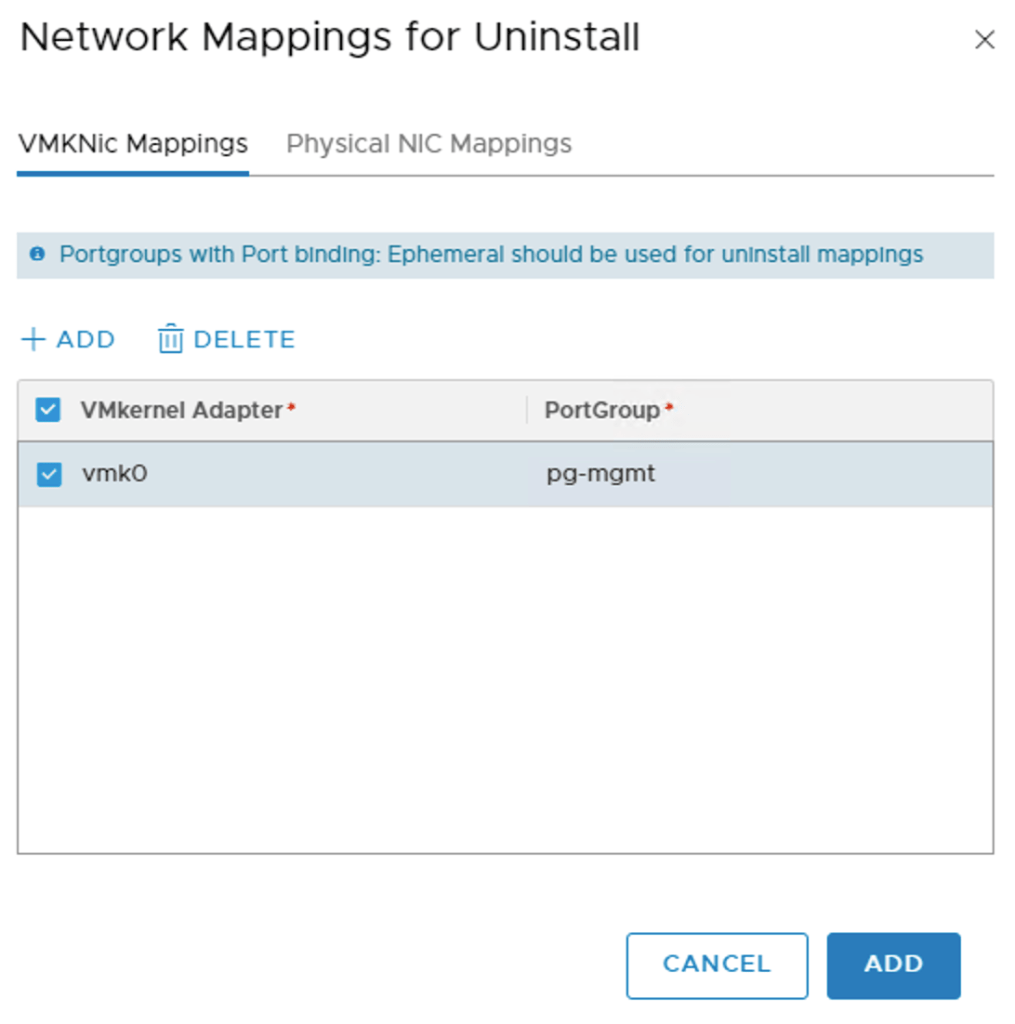
    The uninstall process needs to know what to do with the ESXi host’s pNICS and VMkernel adapters. This information is configured under Network Mappings for Uninstall on the Transport Node Profile that is attached to the host’s current vSphere cluster:

    Under VMKNic Mappings we map the current VMkernel adapters to the distributed port groups that we created as part of step 2:

    Similarly, under Physical NIC Mappings we add the pNICS that should be handed over to the VDS:

    Step 5 – Move ESXi host to the new vSphere cluster

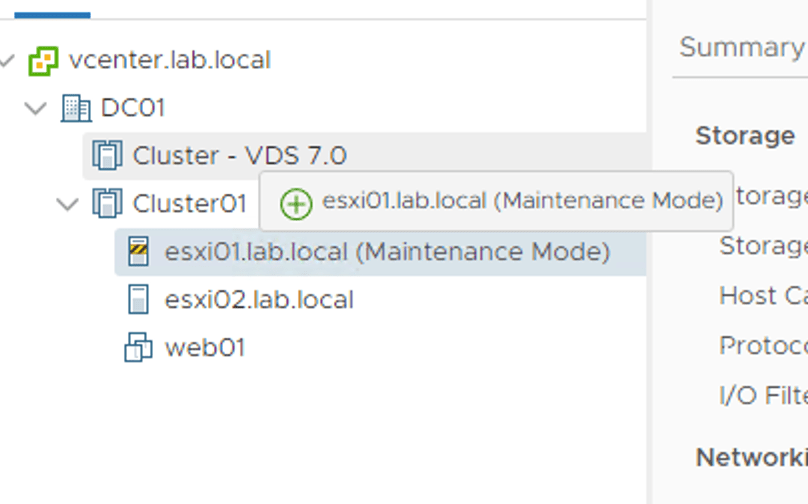
    We put the ESXi host in maintenance mode so that it can be moved to the new vSphere cluster:

    Once moved, the NSX bits and configuration are automatically removed from the ESXi host:

    Thanks to the uninstall mappings configured at step 4, the ESXi host’s pNICs and VMkernel adapters are migrated to the VDS:

    Step 6 – Attach Transport Node Profile

    With compute resources available in the new vSphere cluster, we can attach the new Transport Node Profile to the vSphere cluster:

    NSX bits and configuration are once again installed on the ESXi host:

    When the NSX installation is done our new VDS 7.0 is being presented as an NSX switch. This so we know it is used by NSX-T:

    During the migration process the same NSX-T segments will be shown twice in vCenter:

    Once as opaque networks available to VMs in the source vSphere cluster, and once as NSX distributed port groups available to VMs in the target vSphere cluster.

    Step 7 – vMotion virtual machines

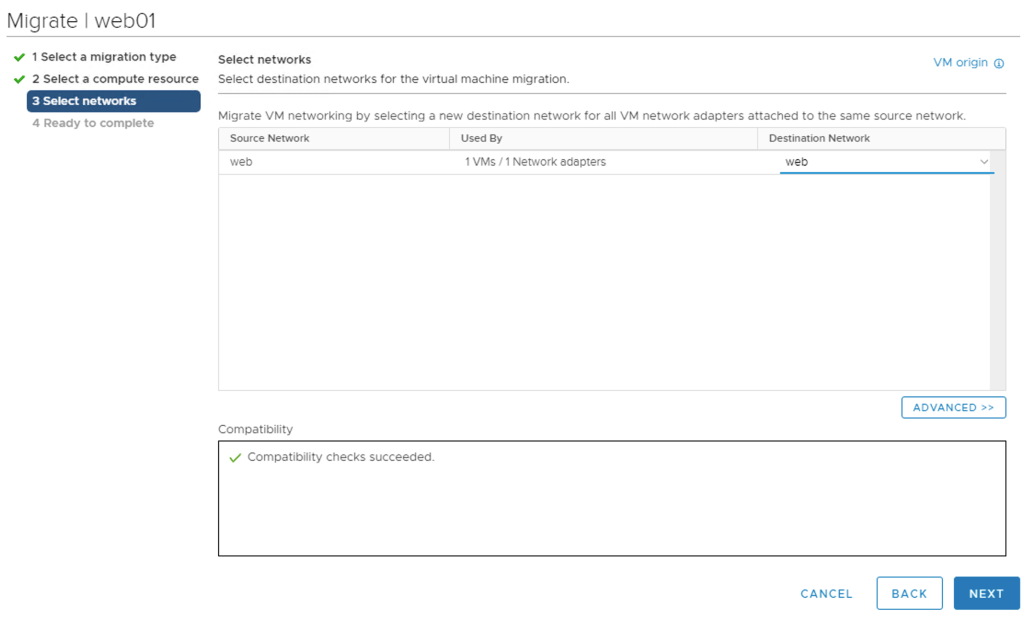
    The NSX distributed port groups are the destination networks when VMs are being vMotioned to the new vSphere cluster:

    vMotion seems to be smart enough to understand that the source opaque network and the destination NSX distributed port group are the same.

    Step 8 – Repeat step 5 + 7

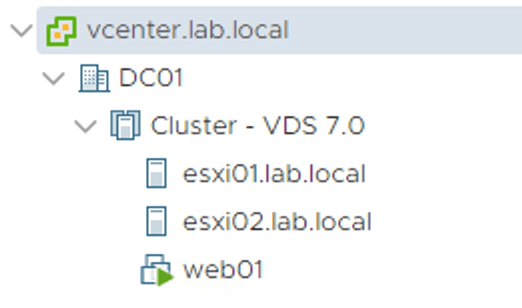
    Now we simply repeat step 5 and 7 for the remaining ESXi hosts and virtual machines until the source vSphere cluster is empty and can be deleted:

    Mission completed! 🙂

    Summary

    While setting up vSphere and NSX-T for the VDS 7.0 in a greenfield scenario is a simple and straight forward process, doing the same in a brownfield/migration scenario requires significantly more work. There’s room for some improvement here which most likely will be addressed in a future release.

    All-in-all there is little doubt that this new NSX-T – vSphere integration is good news for customers running or planning to run NSX-T in a vSphere environment.

    Thanks for reading.
  • Welcome back! Today we continue our NSX-T Multisite adventure. Let’s begin with a short recap of what we did in part 1.

    We started off in an environment with a production site and a partially deployed disaster recovery site. Tasked with configuring the NSX-T 2.5.1 implementation for the new multisite environment, we took the following steps:

    • Enabled DNS based access for transport nodes.
    • Moved the SFTP NSX-T backup target to the DR site.
    • Deployed a standalone NSX Manager node at the DR site.
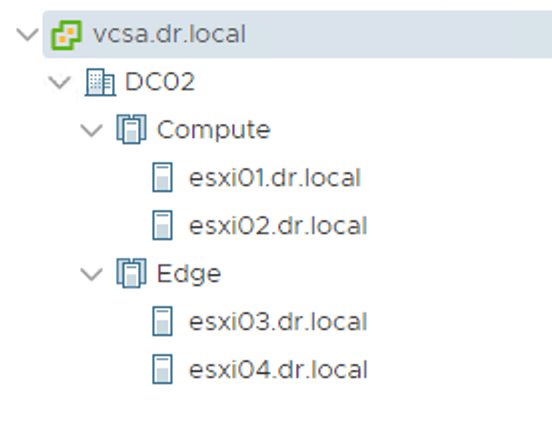
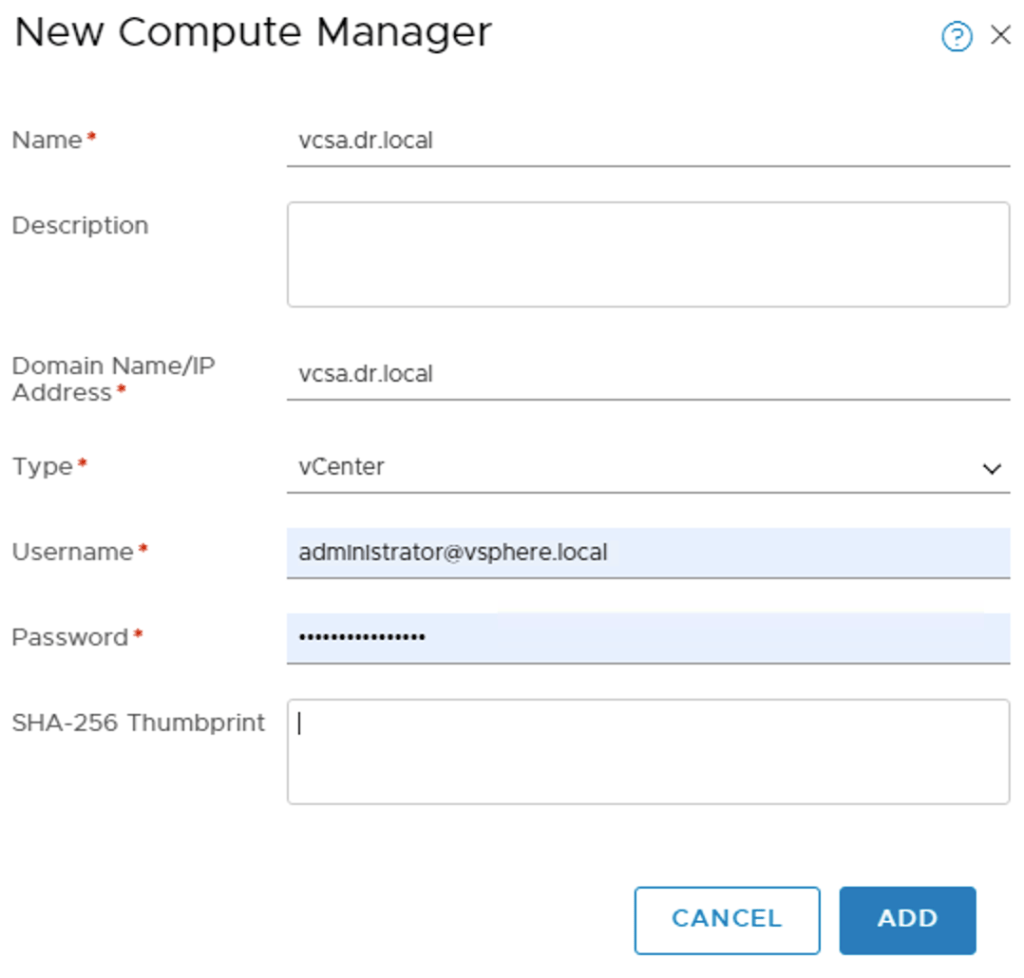
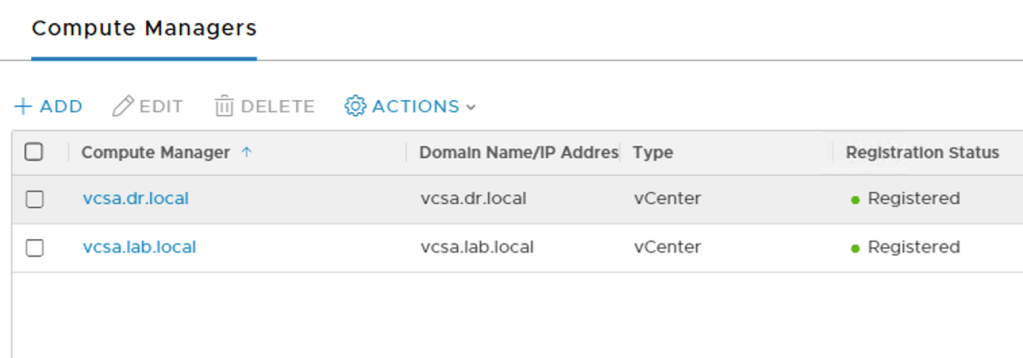
    • Added the DR site’s vCenter instance as a compute manager to NSX Manager.
    • Configured NSX-T transport nodes at the DR site.
    • Set up a Tier-0 Gateway at the DR site.

    This resulted in a fully incorporated DR site from an NSX-T perspective:

    Life is good. If only things could stay like this forever…

    Disaster!

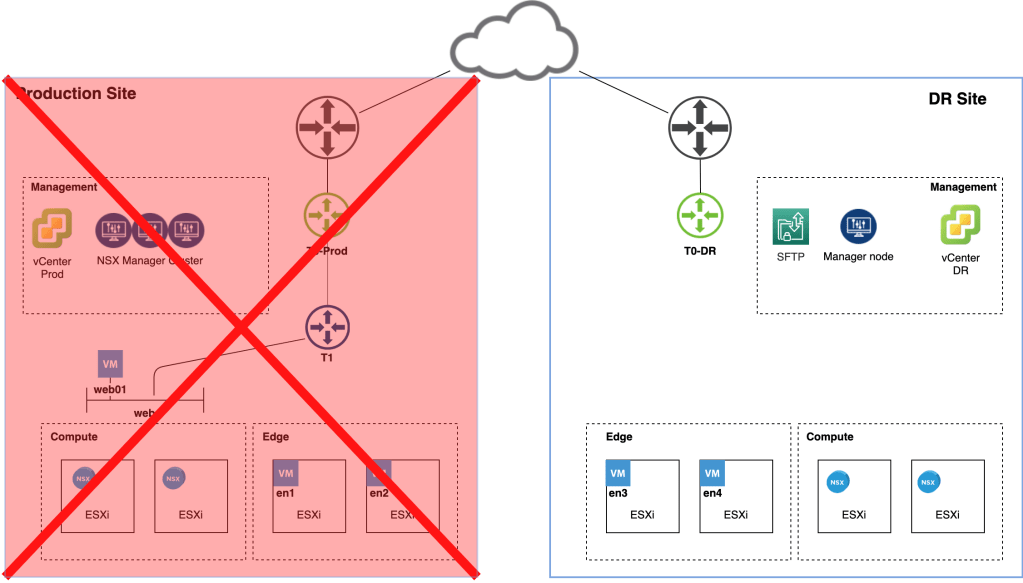
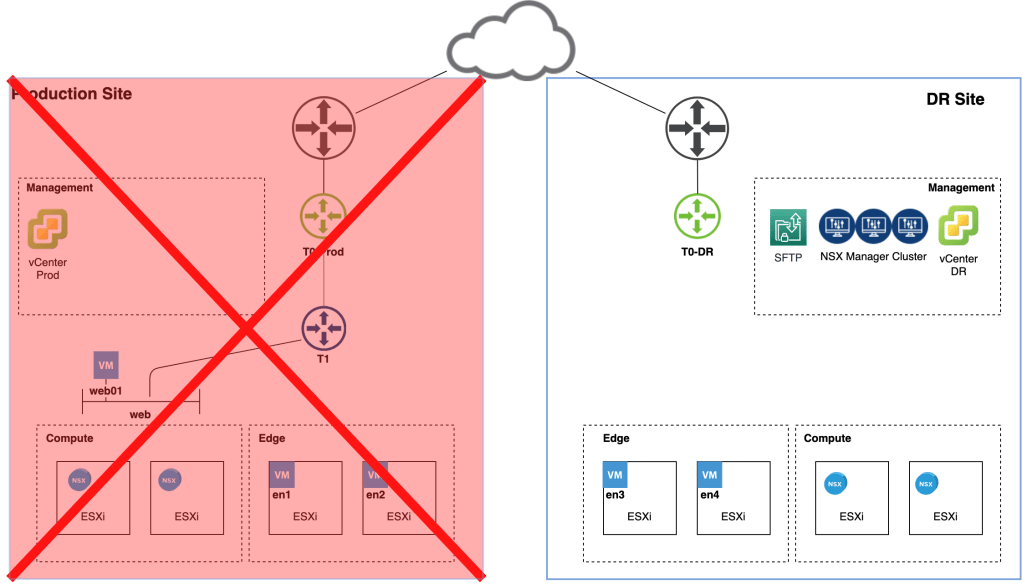
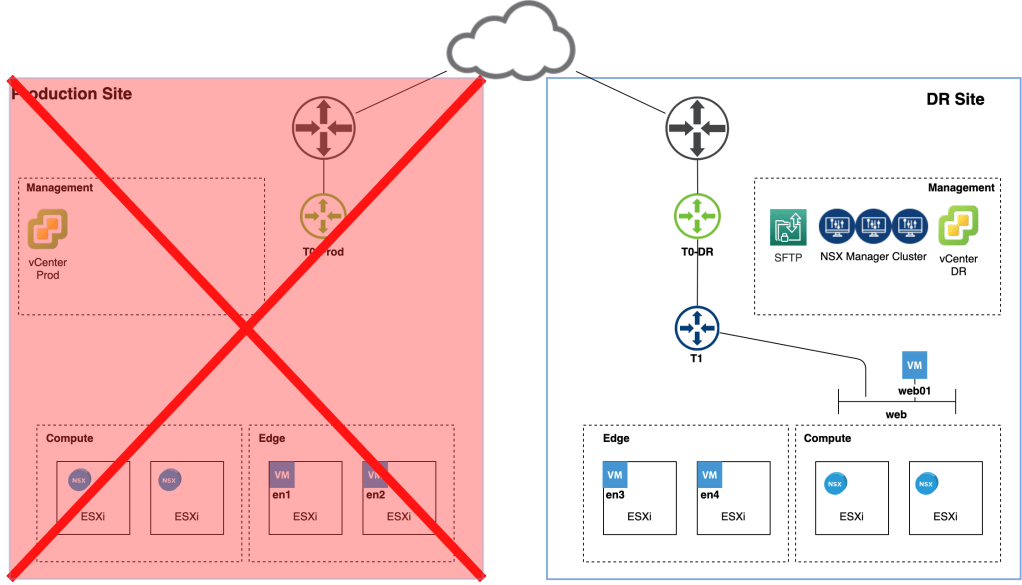
    We knew this was going to happen sooner or later. The production site just experienced a complete meltdown and isn’t coming back online any time soon:

    We need to perform a fail over to the DR site and we have about an hour to get this done. No time to waste!

    DNS

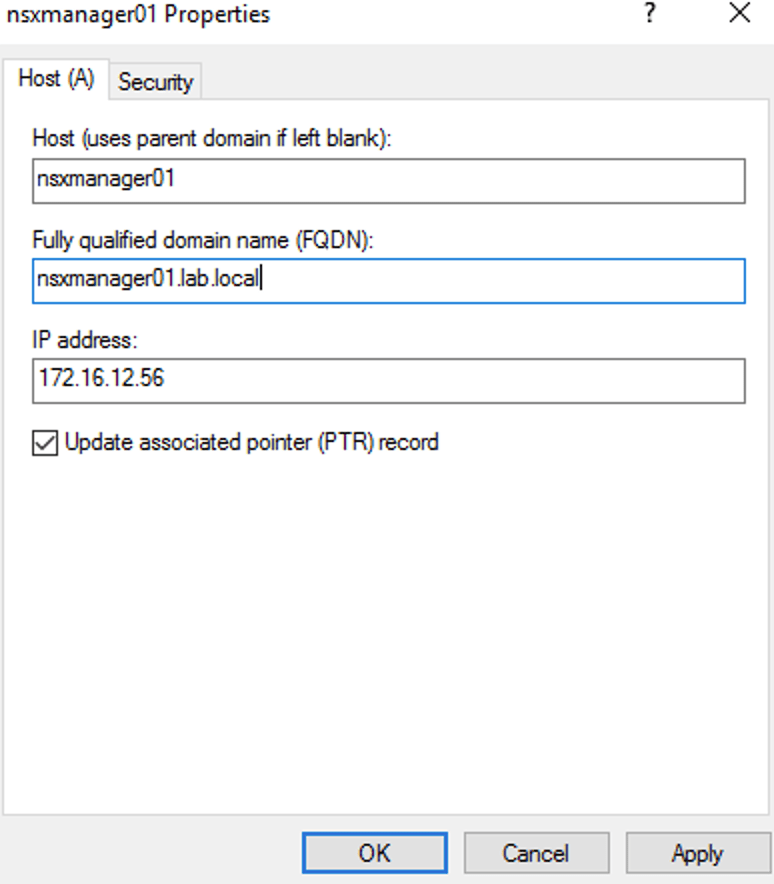
    The first thing we need to do is update the DNS records for the NSX Manager nodes with IP addresses that are part of the DR site’s management network:

    In our scenario the following four records need to be updated:

    nsxmanager.lab.localNSX Manager cluster VIP
    nsxmanager01.lab.localFirst manager node (already deployed at the DR site)
    nsxmanager02.lab.localSecond manager node
    nsxmanager03.lab.localThird manager node

    Enable FQDN

    Before we can restore an NSX backup we need to enable FQDN on the single NSX Manager node at the DR site. Without FQDN enabled the node won’t recognize the backup files on the SFTP backup target.

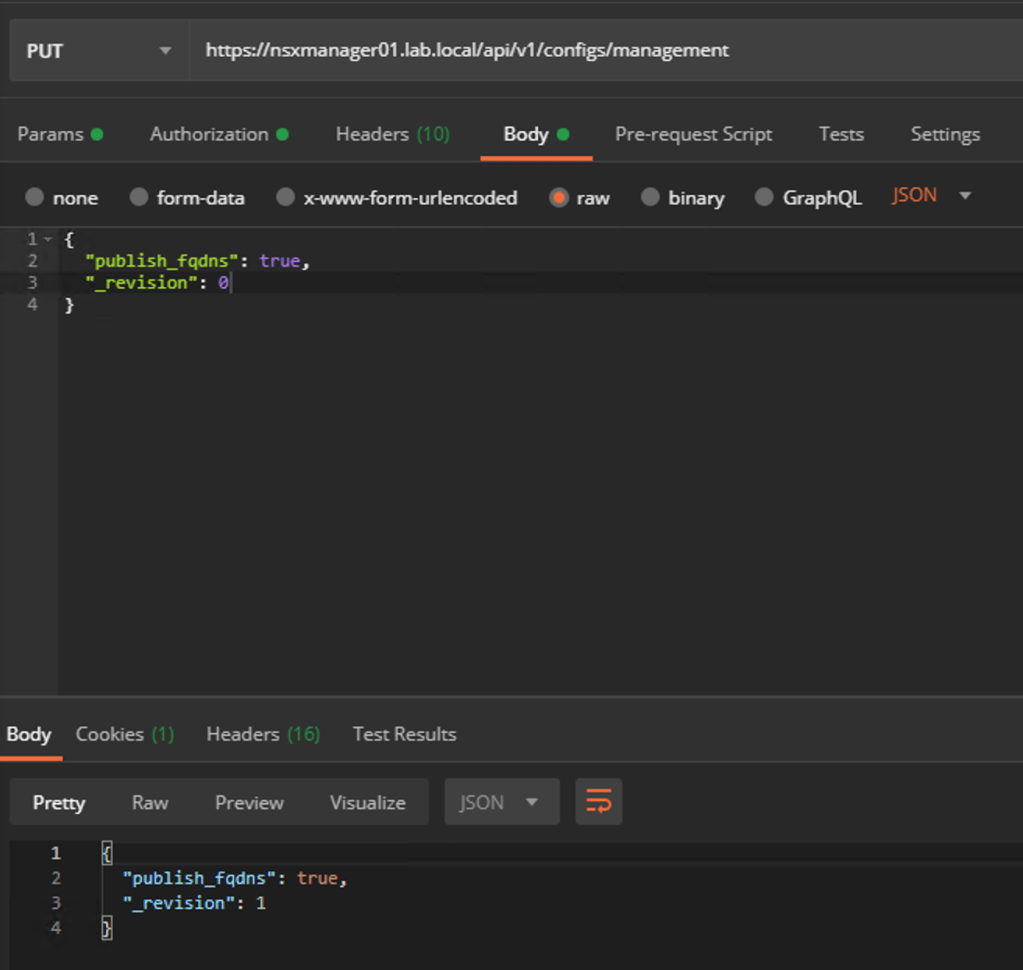
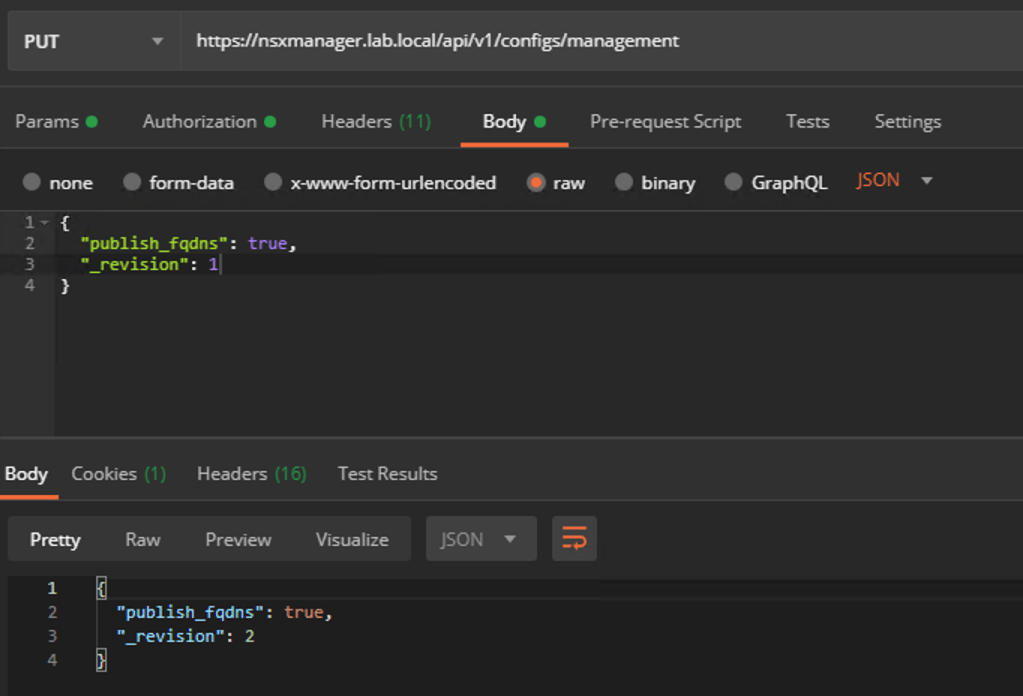
    Issue the following API call to enable FQDN on the manager node:

    PUT https://<nsx-mgr>/api/v1/configs/management

    The request body should contain the following JSON code:

    { 
      "publish_fqdns": true, 
      "_revision": 0 
    }

    Management/Control plane restore

    With updated DNS records and FQDN enabled we can start the restore of the NSX Manager cluster.

    We log in to the manager node and navigate to System > Lifecycle Management > Backup & Restore > Restore:

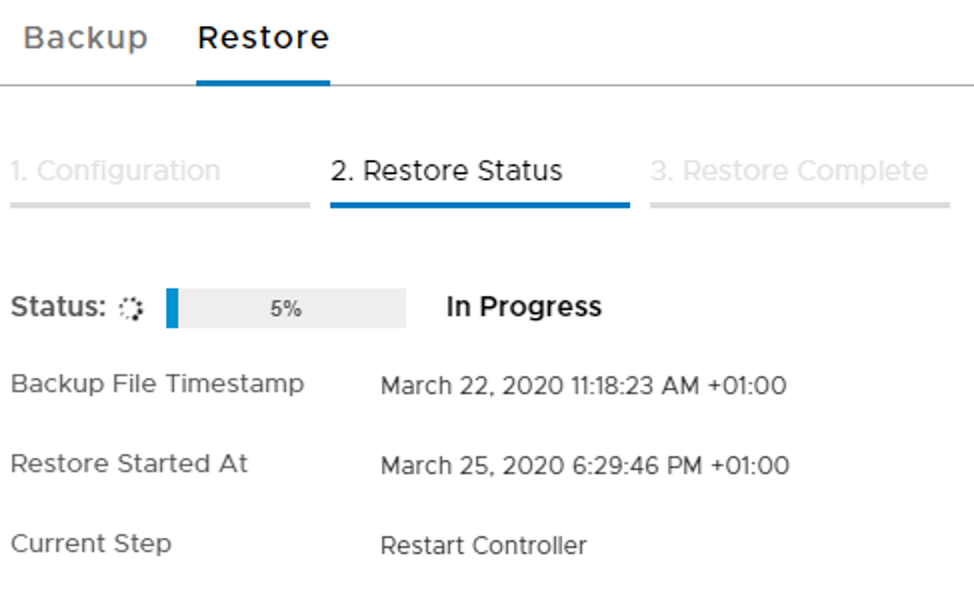
    We choose the most recent backup and click the Restore button to start the process.

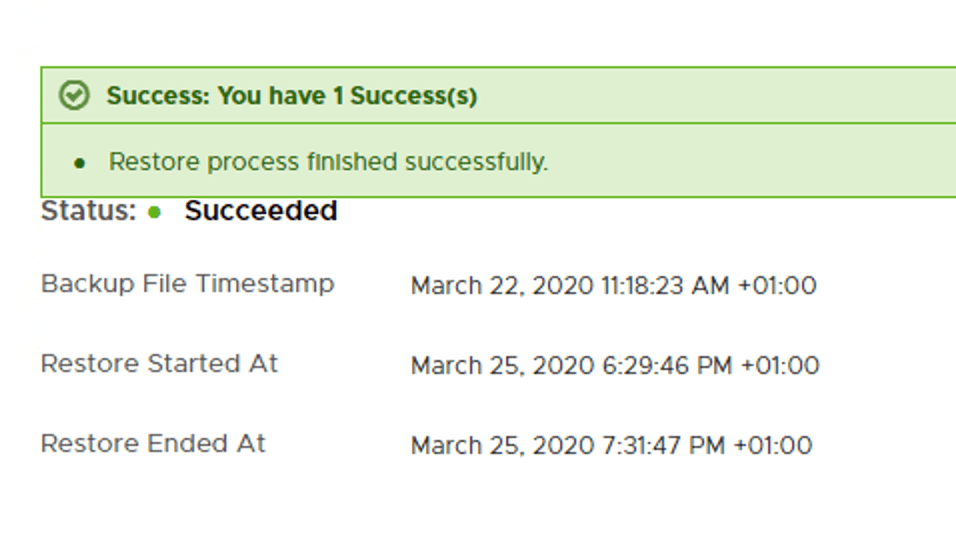
    Restoring might take a while and hopefully ends with this message:

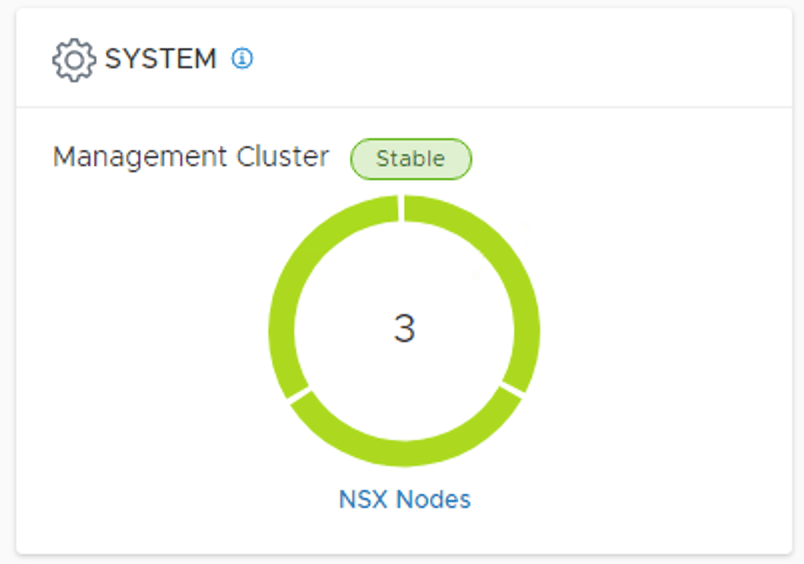
    During the restore process we deploy two additional manager nodes which means we now have a production grade NSX Manager cluster at the DR site:

    Verify transport node connectivity

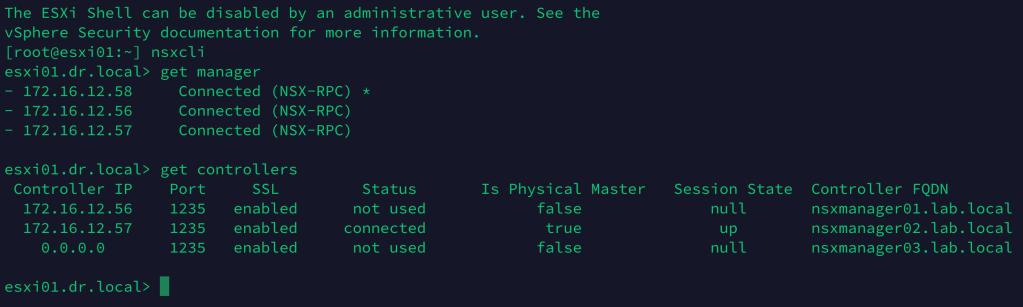
    To verify connectivity between the transport nodes and the manager/control nodes, we can run the get managers and the get controllers NSXCLI commands from any of the transport nodes:

    Data plane restore

    Now that the central management/control plane is up and running again we can focus on recovery of the data plane. Let’s first have a quick look at the current situation:

    The DR site is missing an important piece of logical network: The Tier-1 Gateway.

    Luckily, this is software defined networking and we’ll resolve this issue both swiftly and elegantly. Our weapons of choice are UI, API, or script. For reasons of clarity we will use the UI here.

    In the NSX Manager UI we navigate to Networking > Connectivity > Tier-1 Gateways and edit the Tier-1 Gateway object:

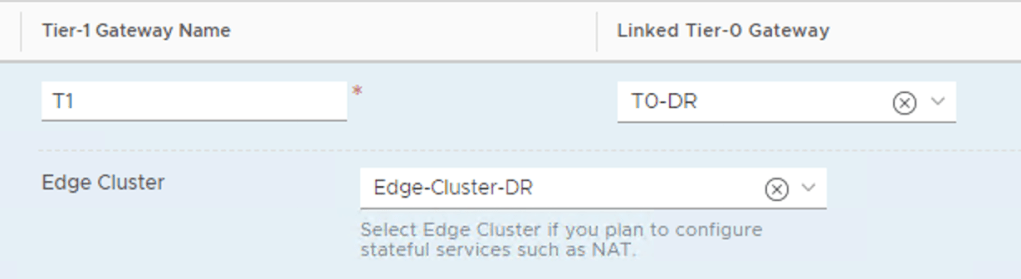
    Here we simply change the Linked Tier-0 Gateway to the Tier-0 of the DR site and the Edge Cluster to the Edge Cluster running at the DR site. Click Save to activate the changes.

    Automation

    If we would like to automate this Tier-1 reconfiguration, as part of some DR orchestration for example, we can basically use any method we like as long as it can interact with the NSX-T REST API.

    From the VMware NSBU comes a PowerShell script written by Dale Coghlan (thanks also to Dimitri Desmidt). You can get it over here. I won’t go into the details of this script, but if we were to use it in our DR scenario the syntax looks something like this:

    .\t1-move-policy.ps1 -NsxManager nsxmanager.lab.local -username admin -Password VMware1!VMware1! -SrcTier0 T0-Prod DstTier0 T0-DR DstEdgeCluster Edge-Cluster-DR -Tag Reallocate -Scope DR

    Other options for automating would be REST API calls or tools like Terraform or Ansible.

    Compute?

    Well, compute was taken care of by the Site Recovery Manager team. We were quite busy restoring that NSX platform after all.

    Workloads have been recovered at the DR site as this final picture shows:

    Summary

    This completes our NSX-T Multisite exercise. It’s been quite a journey. Let’s have a look at the run book for this NSX-T Multisite DR scenario:

    Preparation phase

    1. Enable FQDN on the NSX Manager cluster.
    2. Place the SFTP backup target on the DR site.
    3. Deploy a standalone NSX Manager node at the DR site.
    4. Add the DR site’s vCenter instance as a compute manager.
    5. Configure/deploy NSX-T transport nodes at the DR site.
    6. Configure a Tier-0 Gateway at the DR site.

    Disaster Recovery phase

    1. Update DNS records
    2. Enable FQDN on the standalone NSX Manager node
    3. Restore NSX Manager backup and 3-node cluster
    4. Reconfigure the Tier-1

    Quite a checklist you might say. There are indeed some additional moving parts in this particular scenario. On the other hand, the non-disruptive preparations are done just once and a full NSX-T site recovery takes less than an hour. It’s not so bad.

    I hope you learned something new and useful. I know I did. Thanks for reading.
    References:
    NSX-T 2.5 Multisite document (Jerome Catrouillet, Dimitri Desmidt)

  • When it comes to creating a design for NSX-T Multisite, use case and geography are two key factors.

    Two common use cases for organizations to start looking at a multisite architecture are:

    • Disaster Recovery – Protection against site failure.
    • Availability – Workload pooling with active workloads at each site facilitating higher service availability.

    Site geography from an NSX-T Multisite perspective divides multisite environments into two categories:

    • Metropolitan region (<10 ms between any two sites)
    • Large distance region (<150 ms between any two sites)

    Together these variables give us four NSX-T Multisite scenarios to work with. All of them come with their own prerequisites, requirements, and capabilities.

    In this article and the next I’m going to have a closer look at NSX-T Multisite in a “large distance – disaster recovery” scenario. Probably not the most common scenario and technically a bit more challenging which makes it all the more interesting to write about of course.

    In this first part we focus on deploying and configuring the various NSX-T components for the multisite scenario. In part two we will look at what happens and needs to be done when a site failure occurs.

    So where do we begin? With a picture of course!

    The environment

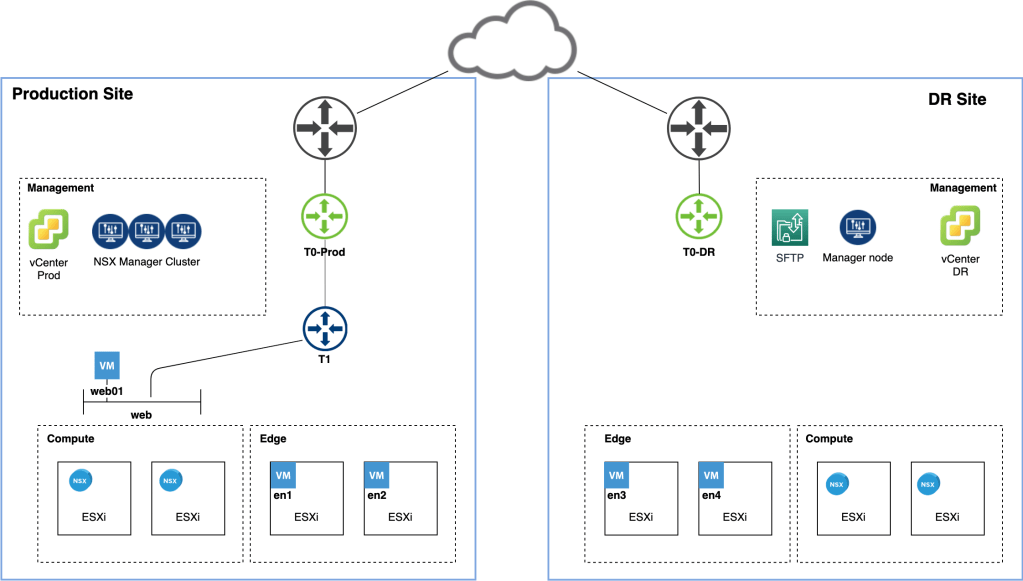
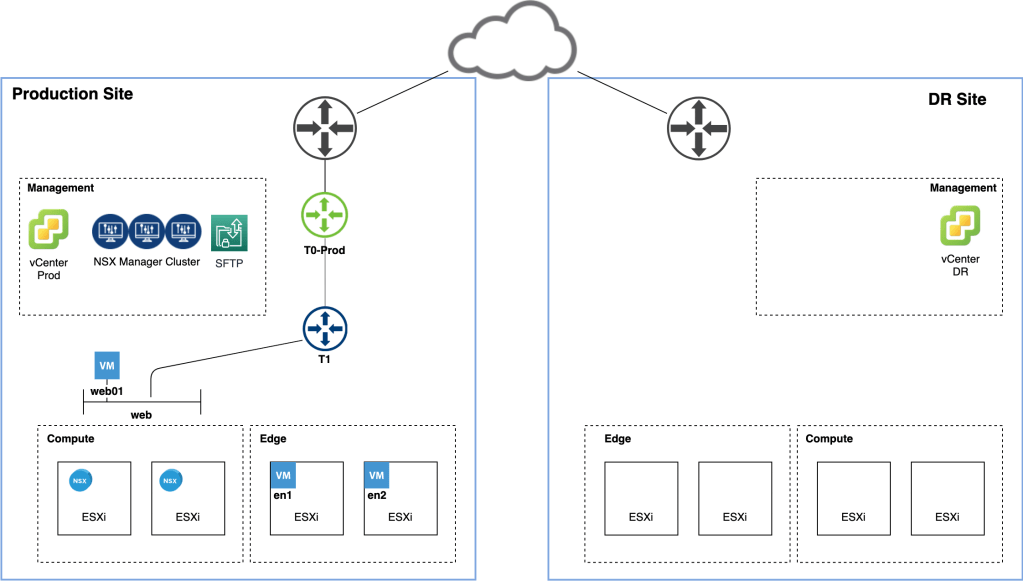
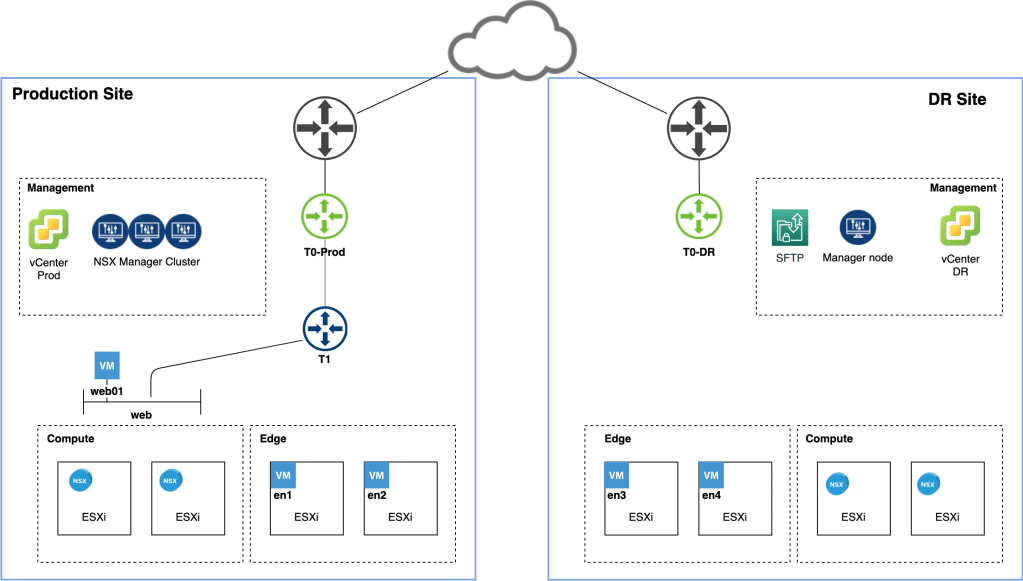
    The diagram below shows the starting point of our NSX-T Multisite journey:

    We have a production site where NSX-T 2.5.1 has been deployed. Workloads in the vSphere 6.7 U3 Compute cluster are connected to NSX-T segments behind a Tier-1 Gateway. The NSX-T Edge transport nodes are hosted in a dedicated vSphere cluster and a separate Management cluster hosts vCenter, NSX Manager, and a SFTP backup target.

    A second, identically equipped, disaster recovery site was recently put into operation. vSphere has just been installed and we’re now ready to configure NSX-T to leverage the new site redundancy.

    Enable DNS

    By default NSX-T transport nodes access the manager/controller nodes on their IP address. It is possible to change this behaviour so that FQDN is used instead.

    Using DNS instead of IP address might or might not be a good practice, but for our NSX-T Multisite scenario it is a requirement.

    Before enabling FQDN based access make sure that forward and reverse DNS records for the NSX Manager nodes and optionally the Manager cluster VIP are in place. Preferably these DNS records have a low TTL like 5 minutes or less.

    Enable FQDN with the following API call:

    PUT https://<nsx-mgr>/api/v1/configs/management

    With the request body containing the following piece of JSON code:

    { 
      "publish_fqdns": true, 
      "_revision": 0 
    }

    To verify that the transport nodes are successfully accessing the Manager/Controller nodes by FQDN, run the get controllers NSXCLI command from any transport node and check that the FQDNs are shown in the Controller FQDN column:

    You probably figured this one out already, but from now on the DNS service hosting these records is critical for NSX-T’s wellbeing and we need to think about its availability. Hosting the DNS service on a third site might be something to consider here.

    SFTP backup target

    We’re doing disaster recovery here and as part of the NSX Manager recovery we need to be able to restore from an NSX Manager backup. For this reason it’s a good idea to move the SFTP backup target out of the production site. We could relocate it to a third site or to the DR site. Here I’m moving the SFTP server to the DR site:

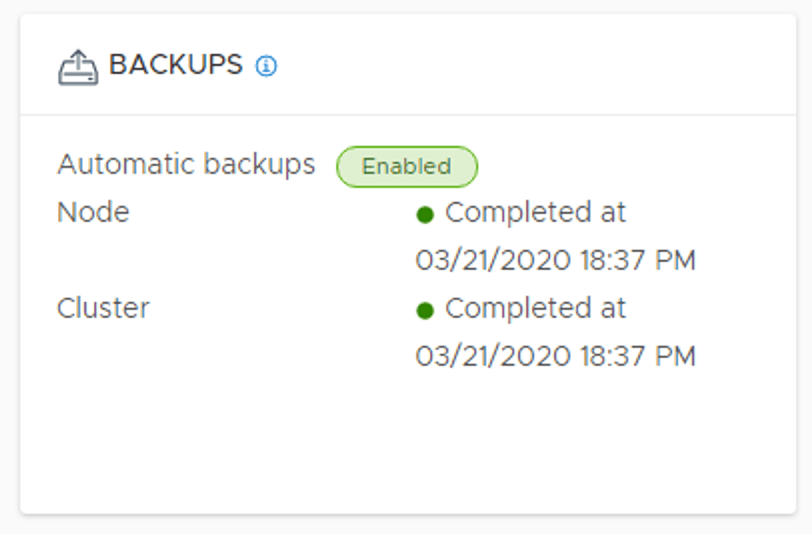
    After moving the SFTP backup target we should verify that backup is still working. We don’t want any surprises here:

    We also need to make sure that Detect NSX configuration change is enabled under the backup schedule:

    Enabling this setting effectively enables continuous backup to the third/DR site.

    NSX Manager node

    As mentioned before, when the production site goes down, the NSX Manager cluster will be restored on the DR site. The restore operation requires a new NSX Manager node.

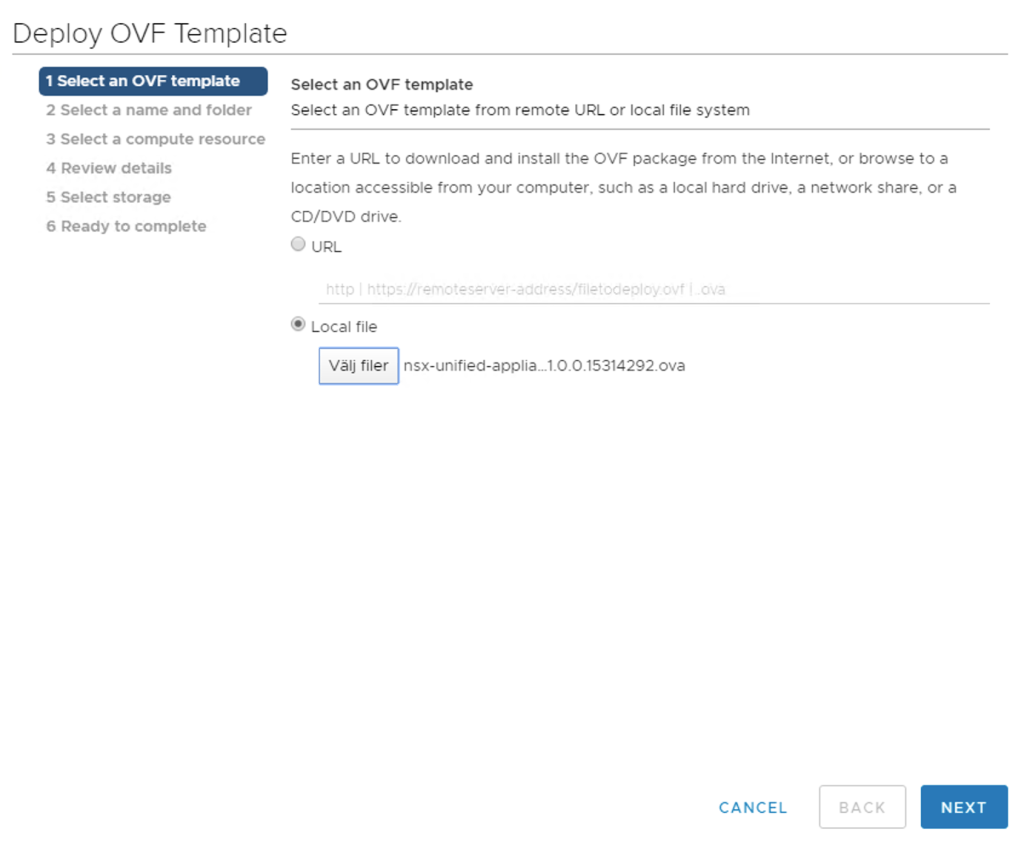
    To save valuable time in a possibly stressful DR situation, we will deploy this NSX Manager node in advance using the NSX Manager OVF:

    The base configuration that is done during the OVF deployment is sufficient for now. It’s just a restore target after all. We do want to document the node’s IP address because we need it when updating DNS.

    One other thing we can do to save even more time is to configure the SFTP server settings. We do this from the new NSX Manager’s UI under System > Lifecycle Management > Backup & Restore > Restore:

    That’s one less thing to worry about.

    Compute Manager

    Back at the production site it’s time to add the DR site’s vCenter instance as a Compute Manager to NSX Manager:

    NSX Manager having access to the DR site’s vSphere environment makes it easier to deploy, configure, and manage transport nodes during normal circumstances.

    Configure ESXi transport nodes

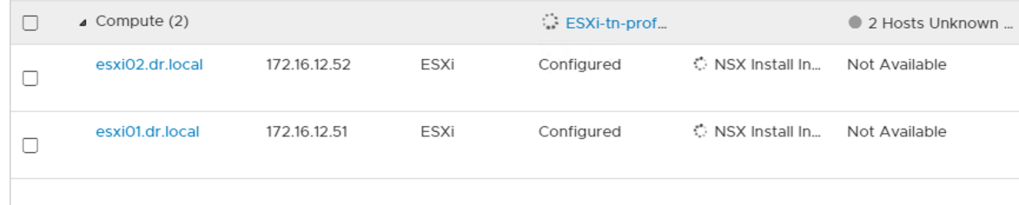
    The ESXi hosts at the DR site will be incorporated into NSX-T by configuring them as transport nodes. This is done the ordinary way and might involve creating an uplink profile, transport node profile, and IP pool to match the specifics of the DR site:

    Deploy Edge transport nodes

    Just like the production site the DR site will have its own Tier-0 Gateway fuelled by two Edge transport nodes. Deploying these Edge transport nodes might also involve creating an uplink profile (when VLAN IDs for the transport VLAN do not match between the sites for example):

    The new Edge nodes at the DR site are then added to their own NSX-T Edge Cluster:

    Tier-0 Gateway

    And here comes the Tier-0 Gateway with its external interfaces and routing configuration so that communication between NSX-T and the physical network at the DR site is possible:

    Make sure to select the Edge Cluster belonging to the DR site.

    Review

    Time for another look at the diagram now that we’ve deployed and configured the NSX-T components at the DR site:

    From an NSX-T perspective the DR site is now fully incorporated. In other words the transport nodes and logical network constructs of both sites are managed by the same NSX Manager cluster.

    Summary

    This completes part one of the series. We prepared NSX-T for site failover by making some configuration changes and deploying the necessary NSX-T components at the DR site. A quick summary of what we’ve done:

    • Enabled FQDN so that transport nodes to use DNS instead of IP when accessing the central management/control plane.
    • Moved the SFTP backup target to the DR site.
    • Deployed an “empty” NSX Manager node at the DR site.
    • Added vCenter DR as a compute manager to NSX Manager.
    • Configured and deployed NSX-T transport nodes at the DR site.
    • Configured a Tier-0 Gateway at the DR site.

    Not too bad! In part two we will continue our journey and dive into handling an actual production site failure. Stay tuned!

  • NSX-T Guest Introspection With Trend Micro Deep Security

    Integrating third party security services with NSX has always been a popular feature of the platform. While NSX comes with its own set of robust security services, there are scenarios where additional workload protection is required. The ability for a partner solution to leverage the rather unique layer in which the NSX platform operates with regard to the workloads makes for a pretty powerful service.

    There are two main types of NSX-T partner integrations. We have Service Insertion for inspection of network traffic and Endpoint Protection (aka Guest Introspection) which provides agentless antimalware and antivirus capabilities for virtual machines.

    In today’s article I’m having a look at setting up NSX-T Guest Introspection through integration with Trend Micro Deep Security.

    Guest Introspection Architecture

    Before we dive into configuring this integration, let’s have brief look at the major components that make up the Guest Introspection solution in NSX-T 2.5:

    So what we have here is:

    • NSX Manager Cluster – Responsible for pushing configuration to the ESXi hosts (carried out by the controller component).
      undefined
    • Partner Console – The partner solution interface for managing the guest introspection solution on the partner solution side. For example Trend Micro Deep Security Manager (DSM).
      undefined
    • Partner SVM – A service virtual machine deployed by the partner solution. It contains the logic to scan file or process events to detect virus or malware on the guest. For example Trend Micro Deep Security Appliance.
      undefined
    • Thin agent – Installed on the guest VM (part of the VMware Tools installation package). It intercepts file and network activities.
    • NestDB – Holds NSX configuration related to the host.
    • OpsAgent – Forwards the guest introspection configuration to the Mux. It also relays the health status of the solution to the NSX Manager Cluster.
    • Context Multiplexer – Multiplexes and forwards messages from all the protected Guest VMs to the Partner SVM.

    Setting up the Trend Micro Deep Security integration

    A couple of things have been installed in the lab environment in advance:

    • vSphere 6.7 U3
    • NSX-T 2.5.1
    • Trend Micro Deep Security Manager 12.5 (DSM).
    • vCenter and the NSX Manager Cluster added to the DSM.

    Having this in place means we can start with the interesting stuff right away! 😉

    Service deployment

    The first step is deploying the partner service which can be done from the NSX Manager UI under System > Configuration > Service Deployments > Deployment:

    As you see the Trend Micro Deep Security partner service is already selectable. It was added when the DSM registered itself with the NSX Manager Cluster. You can view some details about the partner service by clicking on View Service Details link.

    We go ahead and click Deploy Service which brings up the following form:

    Deploying the service is pretty straightforward. We fill out a name for the deployment, pick the compute manager (vCenter), vSphere cluster, and a data store. Clicking Save initiates the service deployment.

    In the next step we see that the SVMs are configured with two NICs:

    A Management NIC that needs to be configured with an IP address (either via DHCP or an NSX-T IP Pool) and a Control NIC that is configured by the system.

    The vSphere cluster in my lab contains two ESXi hosts which means two Trend Micro SVMs are being deployed:

    The SVMs are placed in a resource pool called ESX Agents:

    Group

    Next we need to create a group for the virtual machines that should be subject to the introspection. Groups can be added at Inventory > Groups > Add Group:

    Here I created a group called Trend-DS-Protection with a membership criteria that will add all Windows VMs to the group.

    Service Profile & Rule

    The third step is to add a service profile under Security > Endpoint Protection > Endpoint Protection Rules > Service Profiles:

    Here I’m adding a service profile called Trend-DS-Service-Profile and select the Default (EBT) vendor template.

    Under Rules we first add a policy (Trend-DS-Policy) and then a rule (Trend-DS-Rule) within that policy:

    This rule basically ties the Trend-DS-Protection group to the Trend-DS-Service-Profile service profile.

    Guest Introspection Activation

    The final step is to activate guest introspection for the VMs in the Trend-DS-Protection group. For this the VMs need to be in a managed state in the Trend Micro DSM.

    The easiest way to achieve this is to create an Event-Based task in DSM that will assign a policy based on criteria:

    As you can see above I’m assigning the Windows Server policy to VMs running Windows Server which then results in these VMs automatically becoming managed by DSM:

    One last thing is to make sure that the Thin Agent is active in the guest VMs. As mentioned it is part of VMware Tools, but only installed when performing a Complete installation. In case we did a Typical installation it’s pretty easy to add the Guest Introspection bits afterwards by modifying the existing VMware Tools installation:

    Conclusion

    This completes my high level NSX-T – Trend Micro Guest Introspection configuration walkthrough. In my lab environment I had zero issues installing this solution. VMware and Trend Micro really did a good job in making it an easy process.

    In larger environments the configuration process will be largely the same except for more SVMs to deploy and more VMs to handle.

    Thanks for reading.

    References:
    Trend Micro Deep Security documentation
    NSX-T documentation
    Agentless Anti-Virus with NSX-T Guest Introspection Deep Dive (VMworld 2019, Geoff Wilmington)

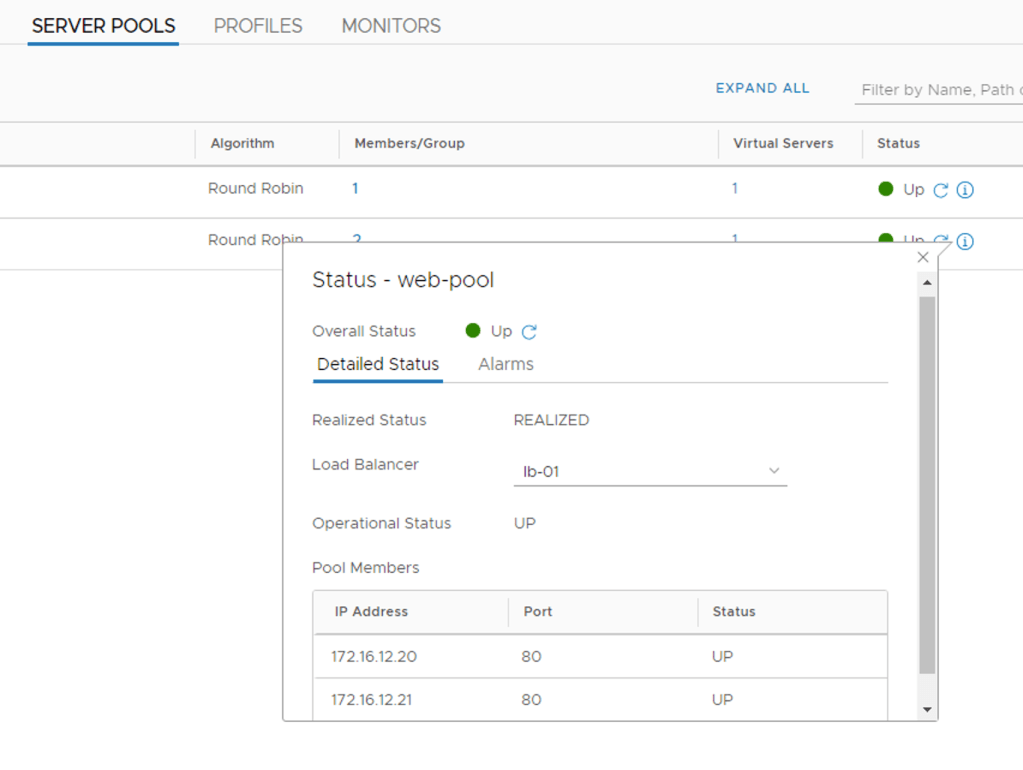
  • Recently somebody asked me if it was possible to see the current status for individual NSX-T load balancer server pool members. This information is indeed available in the NSX Manager simplified UI as you can see below:

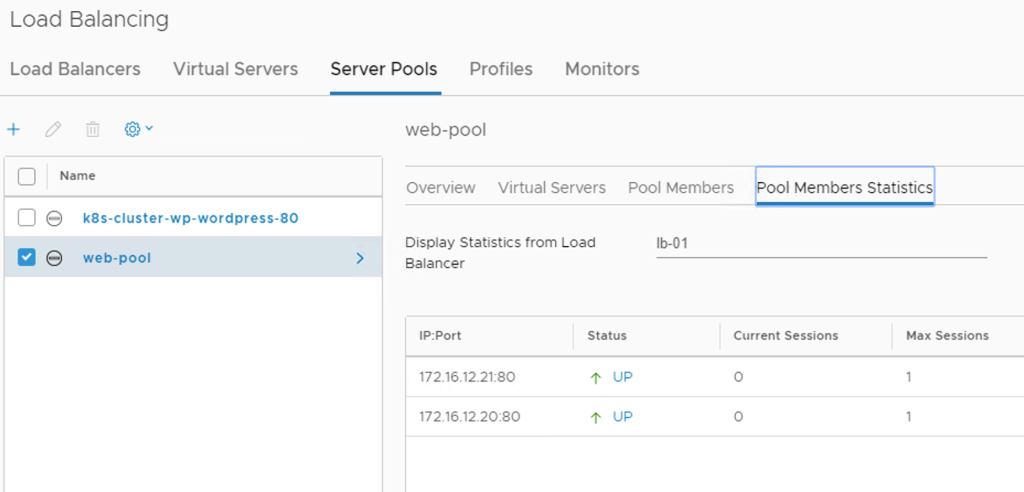
    The same info can be found under Advanced Networking & Security:

    It’s nice that we can find this info in the NSX Manager UI, but it got me thinking that it would be even better if we could get notified on pool member status changes. After all, nobody has time to hang around in the NSX Manager UI all day long. It turns out that this is pretty easy to accomplish.

    Log Insight

    To make this happen I’m turning to one of my favorite tools namely vRealize Log Insight. No environment should be without it if you ask me. It’s a simple yet powerful tool which is why I like it so much. Receiving events, querying for events, and acting on query results. That’s about it most of the time.

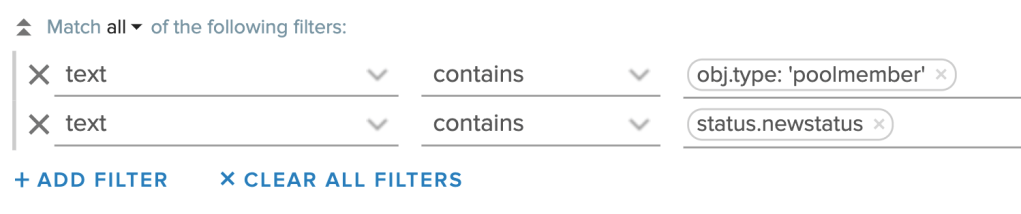
    So in the case of the load balancer server pool member status I create a Log Insight query that is looking for events containing the text obj.type: ‘poolmember’ and status.newstatus:

    Seconds after I shut down one of the web servers in my load balancer server pool, the query above shows me following result:

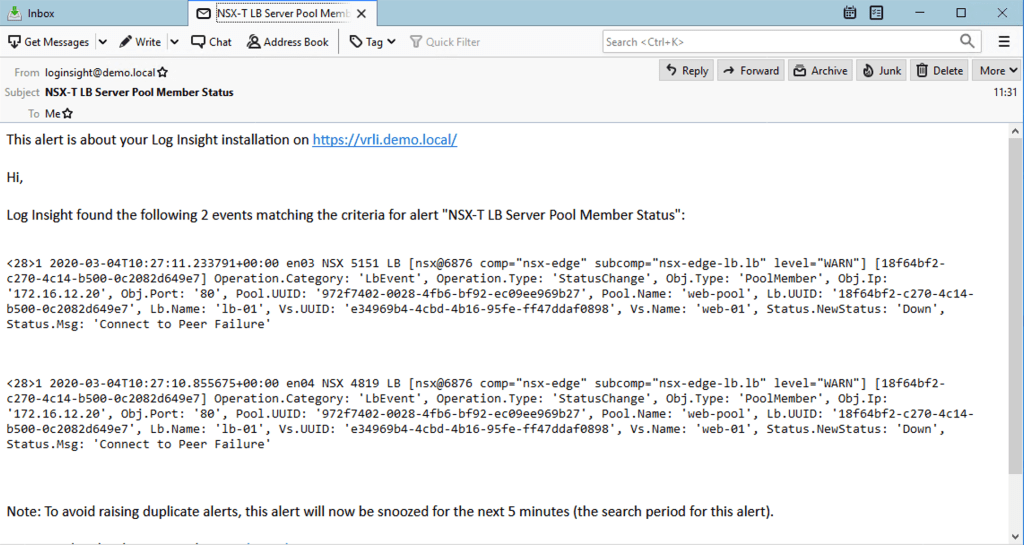
    Each of the NSX Edge nodes involved with the load balancer instance (i.e. the Edge nodes hosting the Tier-1 gateway constructs) generates the same event which is why we receive two identical events.

    The event itself contains a lot of relevant information. A quick look at the key pieces of information in this event:

    • Obj.Ip: ‘172.16.12.20’ – The IP address of the pool member.
    • Obj.Port: ’80’ – The configured port for the pool member.
    • Pool.Name: ‘web-pool’ – The server pool name.
    • Lb.Name: ‘lb-01’ – The load balancer instance name.
    • Vs.Name: ‘web-01’ – The name assigned to the pool member.
    • Status.NewStatus: ‘Down’ – The new/current status of the pool member.
    • Status.Msg: ‘Connect to Peer Failure’ – The reason for the status change.

    A very similar event will be generated once I start the web server again:

    This time the event contains:

    • Status.NewStatus: ‘UP’
    • Status.Msg: ‘pool member is up’

    Alerting

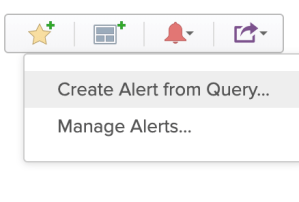
    Log Insight can send alerts based on query results.

    Alerts can be send using email or made available via a webhook for third party integrations (like with Slack). Here I’m configuring an email alert for my pool member status change query:

    I’m triggering the event once more by shutting down the web server:

    I’ve got mail!

    From now on I will receive an email alert each time the status of a pool member changes. Simple and easy.

    Summary

    Although most organizations have systems in place for service availability monitoring and alerting, it can’t hurt to have an extra little eye watching things from the NSX-T perspective. Especially when it’s this easy to set up.

    A final note. To set up event forwarding from NSX-T to Log Insight you should have a look at the NSX-T content pack. Installing this content pack extends Log Insight with dashboards and queries especially for NSX-T. It also provides detailed instructions on how to configure event forwarding on the different NSX-T platform components.

  • Terraform Support For NSX-T Policy API

    The next release of Terraform’s NSX-T provider will add support for the NSX-T policy API. I know many people (including myself) have been waiting for this so it’s kind of a big thing within that space.

    While the new NSX-T provider is not released yet (it’s still being tested), the source code is available on GitHub and can be compiled by anybody that wants to play around with the new functionality.

    In today’s article I’ll do a quick demonstration of how to build a piece of NSX-T infrastructure using the new Terraform NSX-T provider leveraging the policy API.

    Diagram

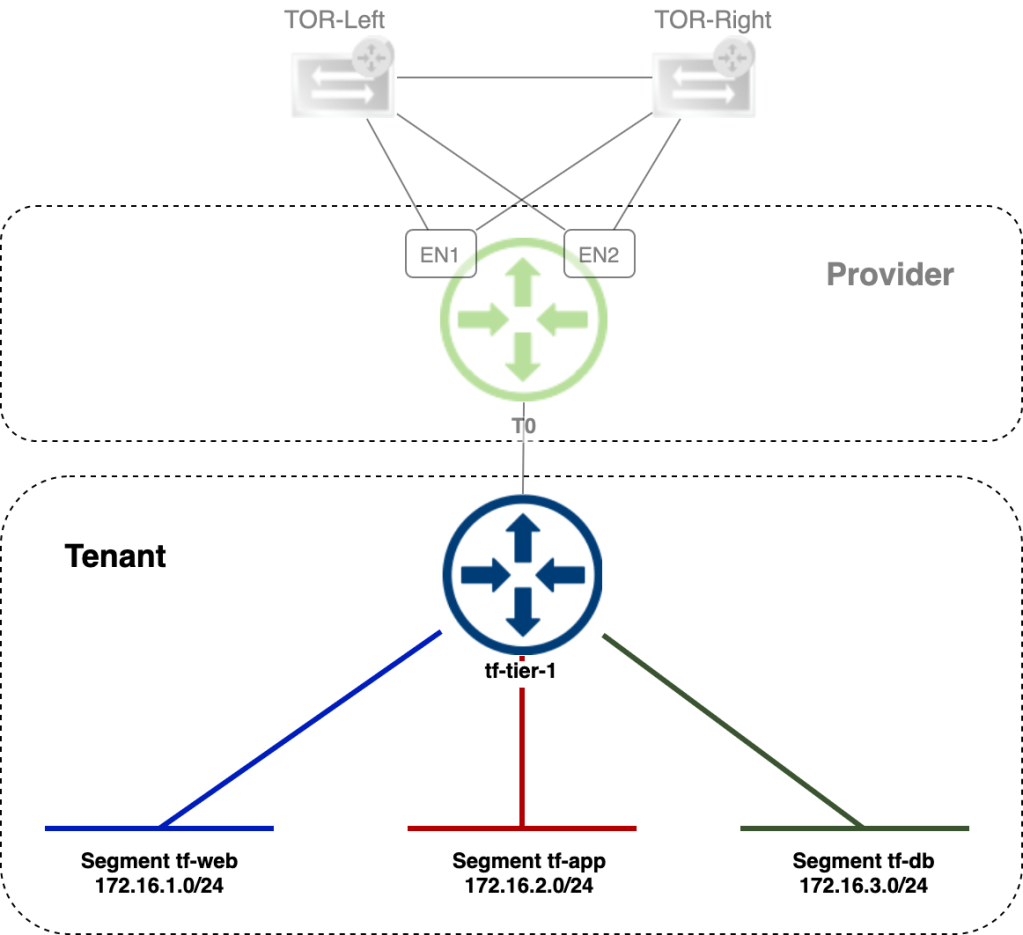
    The diagram below shows the NSX-T infrastructure we’re going to deploy:

    To keep things simple we will focus on building the NSX-T infrastructure for the tenant: A Tier-1 gateway and three connected segments.
    The “Provider” infrastructure is already in place. Let’s get started!

    Terraform files

    The following files are used for this deployment:

    \❯ tree 
    ├── main.tf 
    ├── terraform.tfvars
    ├── variables.tf
    

    I’ve uploaded them to GitHub in case you want to have a look.

    • main.tf – contains the instructions that will build the NSX-T infrastructure
    • terraform.tfvars – contains the values for variables used
    • variables.tf – contains the variable definitions

    Let’s have a quick look at some of the content in main.tf.

    The Tier-1 gateway resource is defined like this:

    #
    # Create Tier-1 Gateway
    #
    resource "nsxt_policy_tier1_gateway" "tier1-01" {
      description     = "Tier-1 gateway created by Terraform"
      display_name    = "tf-tier-1"
      edge_cluster_path = data.nsxt_policy_edge_cluster.edge_cluster-01.path
      tier0_path      = data.nsxt_policy_tier0_gateway.tier0_gateway.path
      enable_standby_relocation = "false"
      enable_firewall = false
      failover_mode   = "NON_PREEMPTIVE"
      route_advertisement_types = [
        "TIER1_LB_VIP",
        "TIER1_NAT",
        "TIER1_CONNECTED",
        "TIER1_STATIC_ROUTES"]
    #
    #
    

    As you can see we define the resource as “nsxt_policy_tier1_gateway”. This instructs Terraform’s NSX-T provider that the object is to be created/managed using the NSX-T policy API.

    The same goes for segments which are defined as “nsxt_policy_segment”:

    #
    # Create segment web
    #
    resource "nsxt_policy_segment" "segment1" {
      description       = "Web segment"
      display_name      = "tf-web"
      transport_zone_path = data.nsxt_policy_transport_zone.overlay_tz.path
      connectivity_path = nsxt_policy_tier1_gateway.tier1-01.path
      subnet {
        cidr    = "172.16.1.1/24"
        }
      tag {
        scope = var.nsx_tag_scope
        tag   = var.nsx_tag
      }
      tag {
        scope = "tier"
        tag   = "web"
      }
    }
    #
    #
    

    Terraform plan

    Time to run a “terraform plan” which does a sanity check of our code and generates an execution plan:

    terraform plan

    According to the execution plan four new objects will be added which seems to be correct (one Tier-1 and three segments).

    Terraform apply

    With an execution plan in place we can continue with applying it. This effectively creates the NSX-T infrastructure as defined in main.tf:

    terraform apply

    No issues here. Terraform tells us that the 4 resources have been added.

    Verify

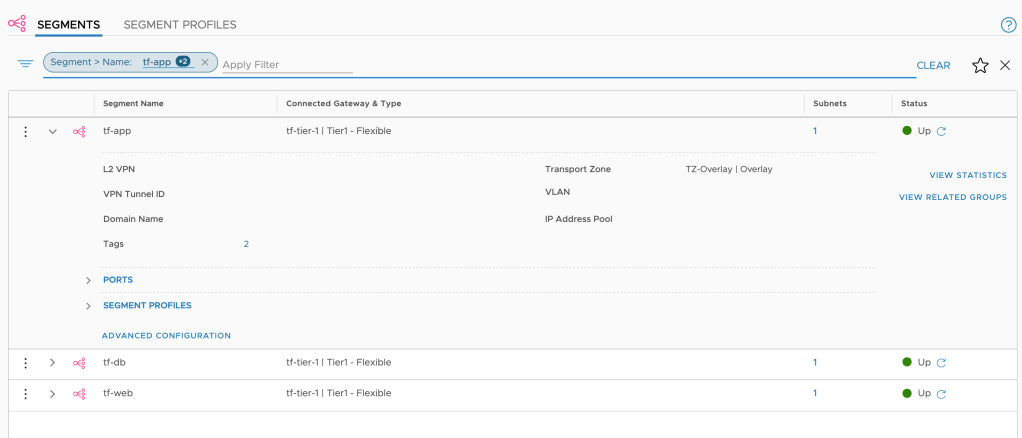
    See is believe so let’s have a look in NSX Manager’s simplified UI:

    The Tier-1 gateway is indeed there. Connected to the Tier-0 and all.

    And there are the three segments connected to the Tier-1 with subnets defined. It seems that Terraform was successful in deploying our small tenant infrastructure.

    Summary

    This looks promising. I’ve always liked Terraform and now that it (soon officially) supports the NSX-T policy API it might very well become my go-to tool for managing NSX-T infrastructure.

    Thanks for reading.